
- Creating a notification
- Editing a notification
- Best practices and common pitfalls for parent communications
🎥 Creating Parent App Notification and Quick Links– Video Guide
Watch this video to learn how to create parent notifications and quick links in the Supplier Portal and how this looks on the parent app.
Creating a notification
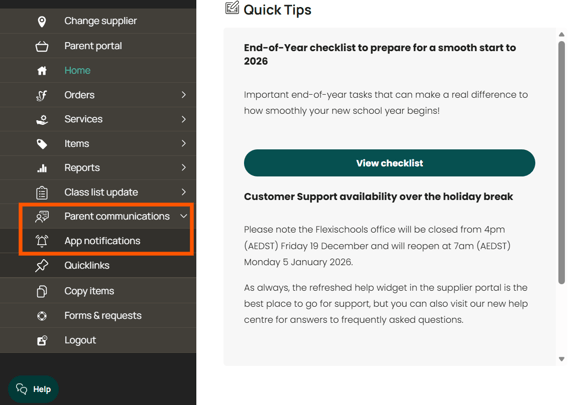
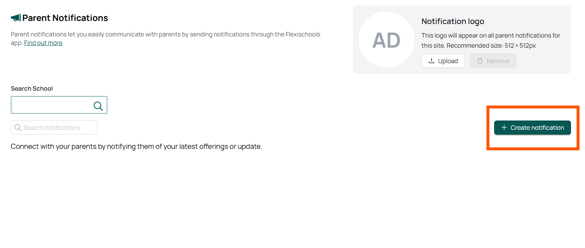
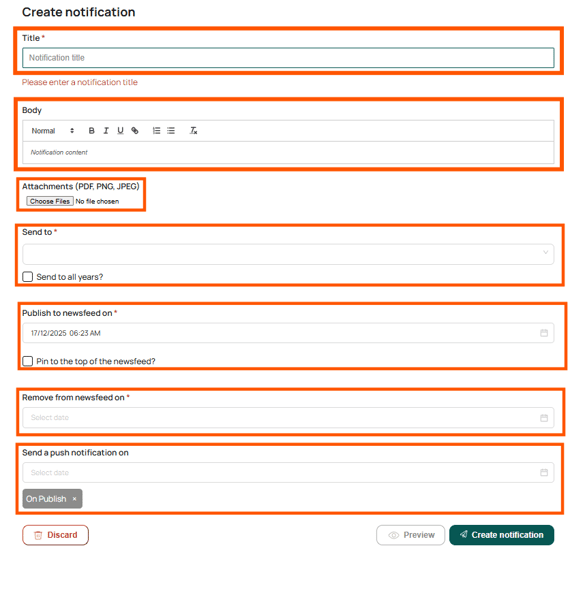
- Title: A short summary of your update. This appears in the push notification (if applicable).
- Body: Additional details, shown when parents open the notification in the app.
- Attachments: Add images or files if needed, such as menus, flyers and clear, single page PDFs.
- Recipients: Select the year levels to receive this notification. To send it to all parents, check 'Send to all years?'.
- Publish on: The date and time your post will go live.
- Expires on: The date your post should no longer be visible. (For example, if your school is hosting a Special Canteen Day on Monday, set the post to expire after Monday.)
- Notify on: Choose when parents should receive a push notification (a notification on their phone or tablet). If left blank, parents will only see the update when they log into the app.
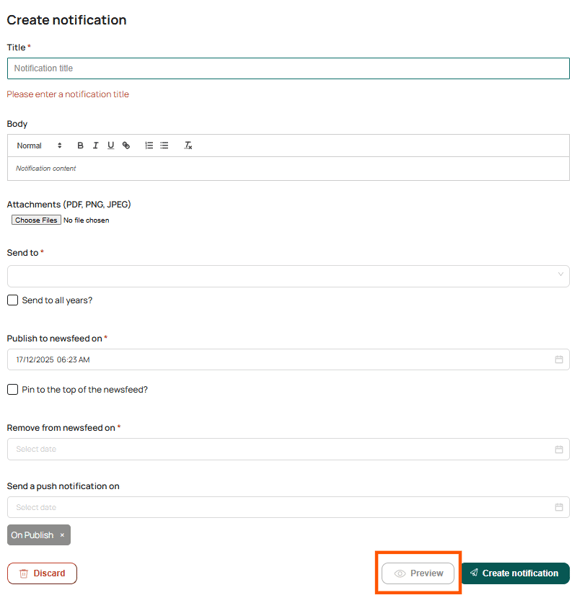
5. Select 'Preview' to see how your post will look like on the Flexischools app. When you are comfortable, press 'Create' to save your changes.
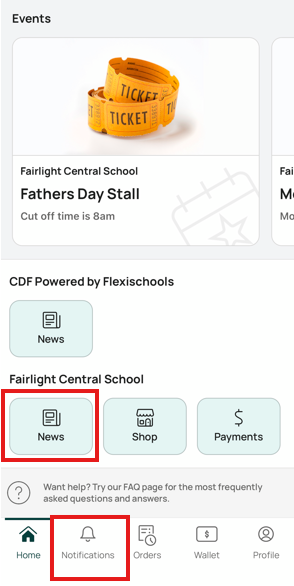
Where parents will see your post
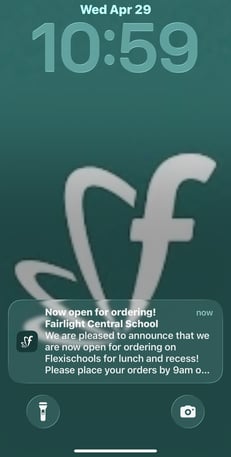
If you’ve set a 'Notify on' time, parents will receive a push notification at the specified time.
Push notification example on a phone lock screen:
Editing a notification
To make changes after publishing, go to 'Parent communications', find your post, and click 'Edit' next to it.
Best practices
- Use the Parent Communications feature to announce new menu items, new services or events, specials, important updates, order cut-off reminders, and closures
-
When creating a new post, we recommend scheduling a push notification time. This helps ensure parents receive a notification, even if they don’t have the Flexischools app open, as it will appear as a pop‑up alert on their device (such as on their phone’s lock screen or notification banner), prompting them to view the message in the app.
-
For best visibility, you may wish to send push notifications in the late afternoon, when parents are more likely to be checking their phones.
Other recommended timing includes:-
Menu launches: Early morning or early evening
-
Order reminders: Day before cut‑off
-
Closures or urgent updates: As soon as confirmed
-
Promotions: Not during peak school hours unless time‑critical
-
-
Keep your title short and clear so parents can quickly understand the key message.
- Have a clear purpose. Every notification should answer: “What does the parent need to know or do?” and when in doubt, ask: “Would I want to receive this as a push notification?”
Common Pitfalls
-
Overusing push notifications can lead parents to disable alerts entirely, so push notifications should be meaningful rather than routine. You also have the option or send out a communication without triggering an app notification.
-
Vague or generic messaging leads to confusion and follow‑up questions, so avoid unclear phrases like “Please see below” or “Important information,” and make sure every message has a clear, easy‑to‑understand takeaway and title.
-
Forgetting to or not setting an expiry means outdated messages can remain visible and parents may act on old information. We encourage that you set an expiry date and time for the notification that aligns with the message’s relevance (e.g. order cut‑off times or the end of a promotion).
Helpful Related Articles:
Parent Notifications Templates