
If you would like to preview your service before making it available to students and parents, you can add a test student to your Flexischools account.
For testing, your service should be live and linked only to the Flexischools ADMIN year level and class. Adding a test student under the ADMIN year and class allows you to view and test the service without making it available to your school community.
To set up a test student, complete the following steps:
Flexischools App (also applicable to CDFpay app)
- Select the Profile icon from the bottom navigation bar.

- Select Add New.

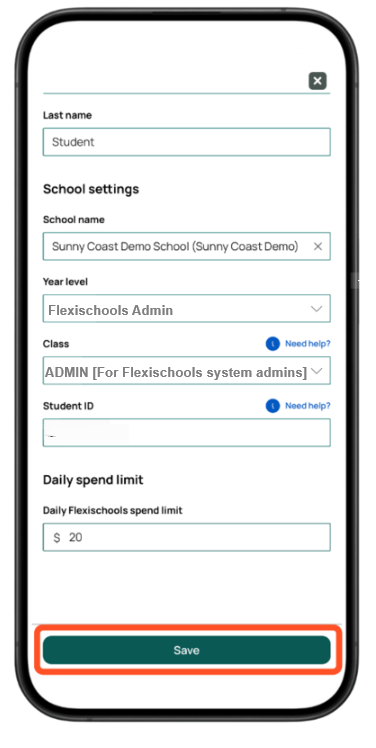
- Enter your test student's details, e.g. Test for first name and Student for surname.
Search for your school and select the 'Flexischoos Admin' year and class.
- Once all details have been correctly entered, click select the green 'Save' button at the bottom of the page.
Flexischools Website (Desktop Site)
- Select the 'Students' tab on the left side of the home screen.

- Click 'Add a student' from the drop-down.

- Enter your student's details. Search for your student's school, select their year and class, and enter their first and last name.

- Once all details have been correctly entered, click select the green 'Submit' button on the bottom-right.
