
📽️ Creating a Uniform Shop Service — Video Guide
Watch this short video to learn how to set up your uniform shop service in the Supplier Portal.
How to Add a New Uniform Shop Service
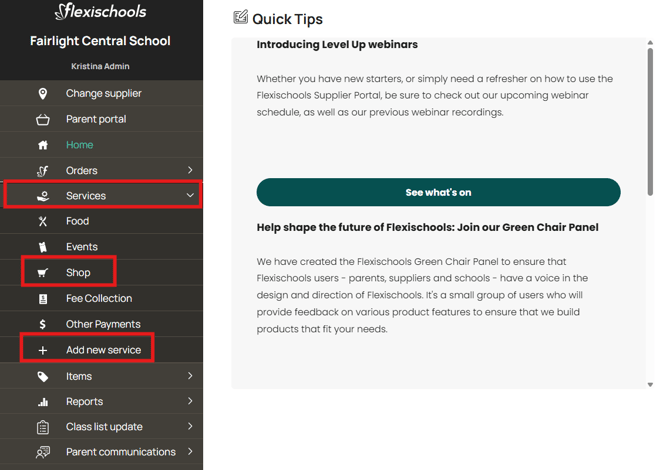
- Log in to your Supplier Portal and click ‘Services’.
- From the drop‑down menu, select either "Shop" or ‘Add New Service’
- Choose ‘Add New Uniform Shop Service’.
If you don’t have permission to add new services, please speak to your Uniform Shop Manager or your Flexischools admin to request access. You can also request access to add new services at any time through the Forms and Requests section of the Supplier Portal.
Shop Basics
-
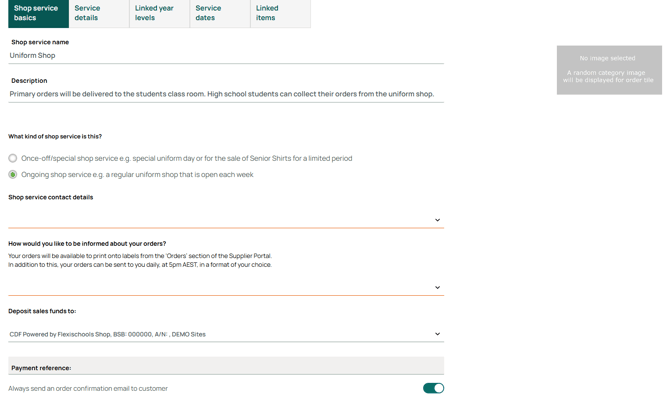
Enter your service details, including name of service such as "Uniform Shop".
Service Description This is what parents will see, so include key details such as opening hours, collection instructions, or sizing information.
What kind of shop service is this? Uniform Shops often operate year‑round, but you can choose to set permanent availability, or restrict ordering to certain dates (e.g. seasonal uniforms)
a. A once off/special shop service Choose this option if your shop is only available for a limited time or for a specific purpose. e.g. A Senior Shirt Service that is only available for a limited time or seasonal uniforms.
b. An ongoing Shop Service Choose this option if your Uniform Shop is open regularly, such as every week or year‑round.
Service Contact This is who we contact if we need more information. It will not be visible to parents, but email and phone number may be provided upon request in the event they need to cancel an order or speak directly with the shop contact. Emergency contact number is never provided to parents.
If your preferred contact isn’t listed, choose ‘The site contact I need is not listed’ and add their details. The ‘Site Name’ should be the name of your Uniform Shop, for example: Fairlight Central School Uniform Shop, and 'Site Address' should be the location of your Uniform Shop
How would you like to be informed about your orders? Your orders will always be available to view and print from the ‘Orders’ section of the Supplier Portal.
In addition to this, you can choose to receive a daily email summary of your orders around 5pm AEST. You can select from the following formats:1. I only need labels Choose this option if you prefer to view order details directly in the portal and only need printable packing labels emailed to you each day.
2. I'd like my orders emailed to me in a daily spreadsheet This option provides a simple daily spreadsheet that lists all orders made that day. You will still be able to print labels if you wish. It’s useful for quick overviews, stock checks, or tallying quantities.
3. I'd like my orders emailed to me daily in a page‑per‑order format (order confirmation + tax invoice) This format sends one page per order, including full order details, customer information and a tax invoice.
This option is recommended for Uniform Shops because it allows you to print each order individually along with a tax invoice. This makes it easy to attach the printed invoice to the correct bag or bundle and streamline packing and collection.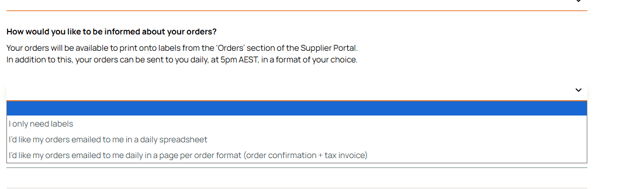
Deposit Sale Funds If your bank details are not listed, you’ll be prompted to complete the banking form. Our support team will notify you once your account has been successfully added.
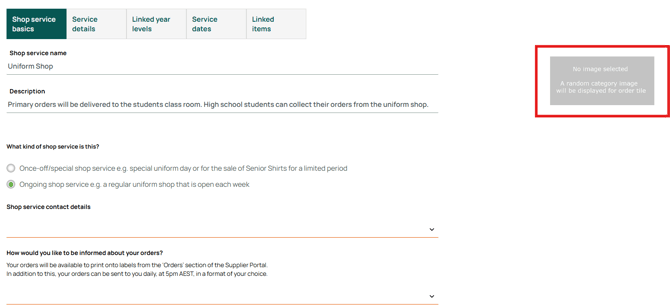
Add an Image Upload a product image or a uniform shop banner that will appear to parents in the Flexischools App. To do this, click on the grey image box on the right‑hand side of the page (labelled “No image selected”). You will then be prompted to select and upload an image from your device or choose from the available images provided.
-
Scroll to the bottom and click ‘Create’.
Don’t worry— you can edit your shop service at anytime by navigating to "Services" then "Shop" and clicking on the pencil in the active bar of the shop service you would like to edit.
Linked Year Levels
In this section, you will choose who your shop service will be available to. Only parents with a student in the selected year level/s can place orders through Flexischools for your shop.
- Under your schools name you can select the year levels who should be able to purchase uniforms and click ‘Save and Continue’.
- If you have multiple schools/businesses showing on this page, you can select the school(s) where this service should appear.
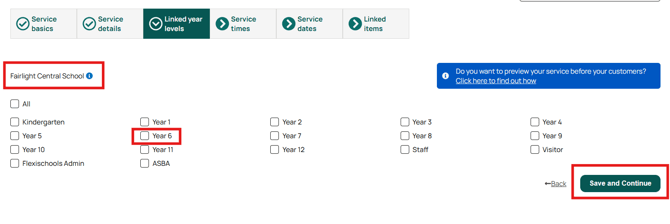
Tip! If you would like to preview your event before it becomes available to parents, link only the admin level for now. Scroll to the bottom of this page for instructions to preview your event.
Service Times
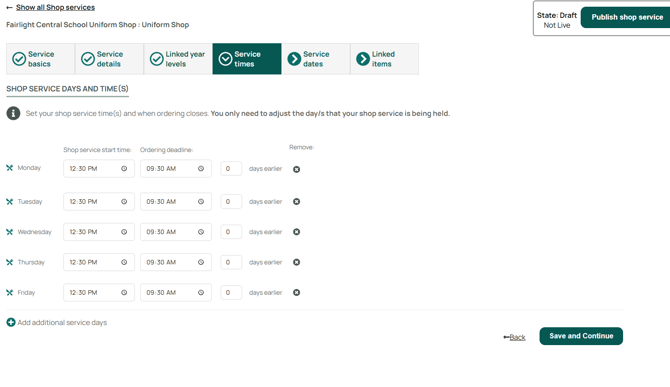
The Service Times page is where you set the days and times your Uniform Shop is open for ordering, as well as the cut‑off times for when parents can no longer place orders.
This page controls your weekly ordering schedule. For each day your shop operates, you can set:
- Shop service start time This is the time your uniform shop service begins on that day.
- Ordering deadline
This is the latest time parents can submit an order for that day’s service and can be used together with the "days earlier" option to determine how far in advance ordering closes. e.g.
0 days earlier means orders close on the same day as the service, 1 day earlier means orders close the day before at the same cut‑off time, 2 days earlier, and so on.
Service Dates
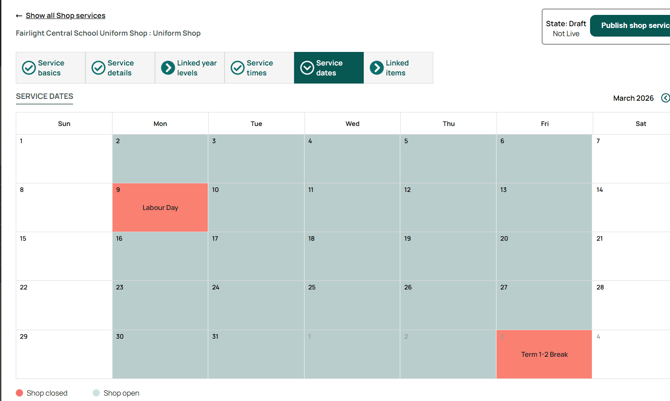
To close a day of service, simply click on the date in the calendar.
A pop‑up window will appear showing the service status. Toggle the Service Status switch to Closed, and enter a closure reason. Select Save to confirm.
You can also reopen a date that has been previously closed.
Click on the red “closed” calendar tile, toggle the Service Status switch back to Open, and select Save.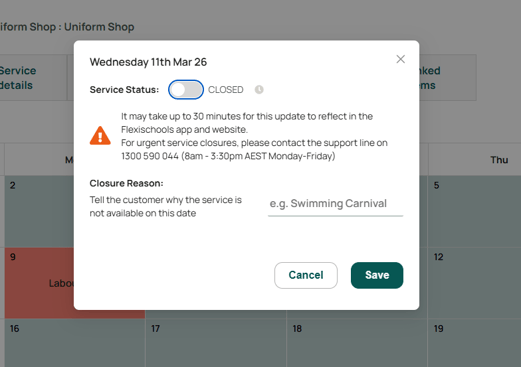
Linked Items
This is where you create and edit product Categories, Items, and Options (sizes, colours, etc.).
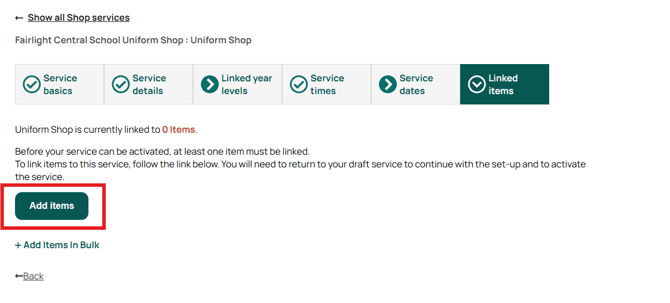
Linking an Existing Item
-
Locate the item in the "items" then "shop" tabs, and click on the item name.
-
Under ‘Services the Item Appears In’, select your Uniform Shop.
-
Click ‘Save’.
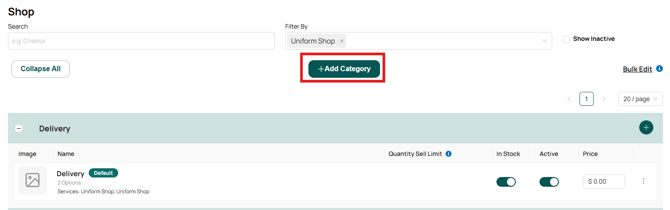
Creating a New Category
If you would like to create an item in an existing category, skip to 'Creating a new item'
(Useful for grouping uniforms such as “Summer Uniform”, “Winter Uniform”, “Sports Uniform”, etc.)
-
-
Click ‘Add Category’.
-
Enter the name, description, and select an image (optional).
-
Click ‘Create’.
-
Creating a New Item
- Find the category you would like your item to appear in and click the plus icon to the right of the category name.
In the below example, an item will be added to the 'winter uniform' category.
- Enter the name, description, and price of your item.
Note: if you would like the price of your item to change depending on the options selected, we will do that in the 'options' section.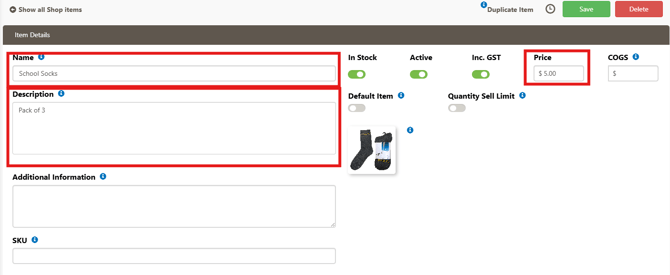
- If you like, you can enter a SKU (stock keeping unit) to keep track of your inventory and assist in selling items through Flexipos when linked with your item, if you have a scanner. This won't be visible to parents.
-
You can upload an image of the product to help parents identify exactly what they’re ordering.
The image displays alongside the item name in the uniform shop catalogue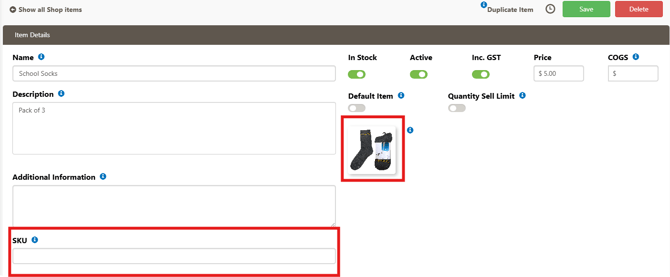
- Quantity Sell Limit can be enabled should you wish to restrict how many of this item can be purchased. Two options are available:
Per Service Time: means that for each service that the item is linked to ie Uniform shop and Winter Uniforms. the QSL limit applies separately for each service and resets every day that service occurs.
Total: This option places a fixed overall limit across all services.Once the total limit is reached, the item will remain at 0 available until you manually reset it.
If no limit is needed, this field can be turned off.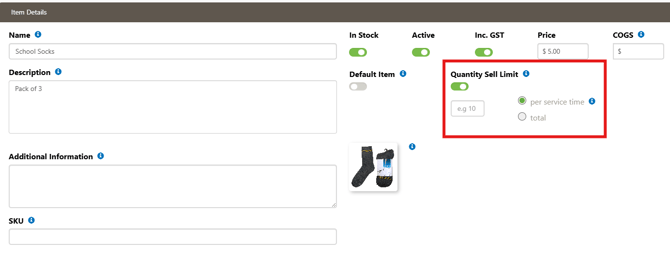
-
Under ‘Services the Item Appears In’ select your service (e.g., Uniform Shop).
Items can be linked to multiple services.
Once selected, the item becomes linked and will appear for ordering in that service. Items can be linked to multiple services.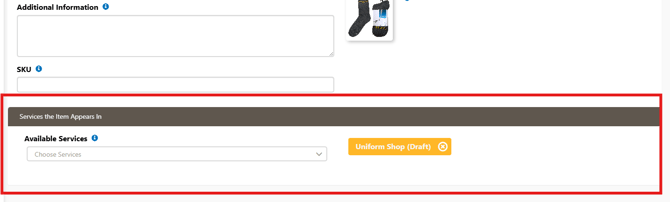
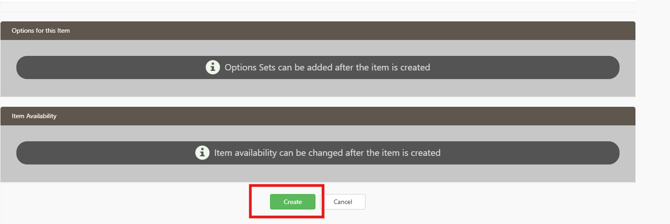
- Scroll down and click create, which will then allow you to add options to the item.
-
The Options for this Item section lets you add, manage, and price options associated with your item, such as sizes and colours. This helps keeps your shop organised without creating multiple separate items for each size of the same product.
Click on the "Add a Set Of Options" button to begin. You will be prompted to create a heading, and then you can add in your relevant options underneath this. Each option has a In stock toggle, Active/Visible toggle, Inc. GST toggle, Option-specific price and Remove option button.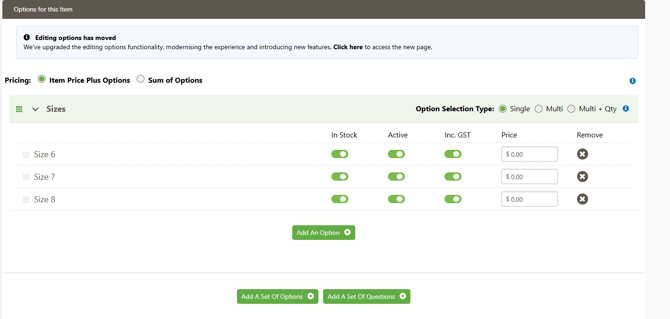 Pricing for Options: At the top of the Options section, there are two pricing modes:
a. Item Price Plus Options You set a base item price, and options add additional cost on top.
Use this when only some variations cost more.b. Sum of Options The price is based entirely on the option selected — the base item price is not used.
Use this when each variation has its own standalone price.
Option Selection Type: You can choose from three Option Selection Types, depending on how you want families to select variations:
a. Single: A single option type means the customer can only select one choice from the list. They must pick one option before continuing, and they cannot choose more than one.
b. Multi: A multi option type allows customers to select multiple different options, or scroll by without selecting any, if the option listed is not mandatory to be selected. This type can also include minimum and maximum selection limits, meaning you can require them to choose at least one (or more) and cap the total number of selections if needed.
c. Multi + Qty: Multi + quantity is similar to Multi, but with an extra layer. Customers can choose multiple units of the same option. For example, they can select “2 × size 6 socks” instead of just one. This is useful when options can be purchased in multiples.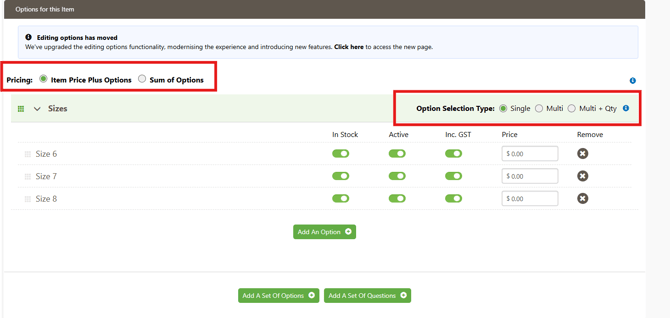
Editing Options Has Moved
When you select the updated editing area (via the “Editing options has moved” link), you’ll be taken to a more detailed options management page.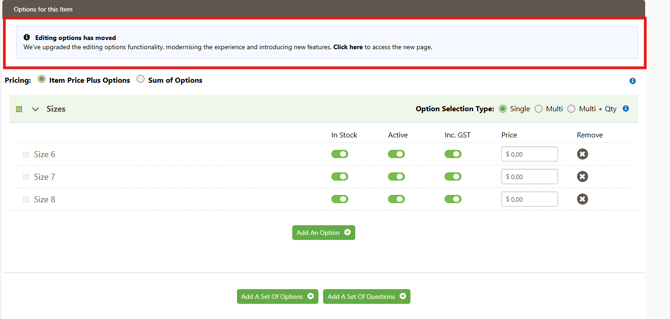
This new interface allows you to manage Quantity Sell Limits (QSL) and stock settings for each individual option you’ve created. E.g. you can limit Size 6 to 5 units but allow unlimited purchases for Size 7.
To adjust these settings, simply click the arrow to the left of the option name to expand its details. Within this dropdown panel, you can toggle the QSL on or off, enter your limit, choose whether it applies per service time or as a total across all services, and your changes will automatically be saved.
These controls must be managed through this new options page. They will not appear on the original item screen.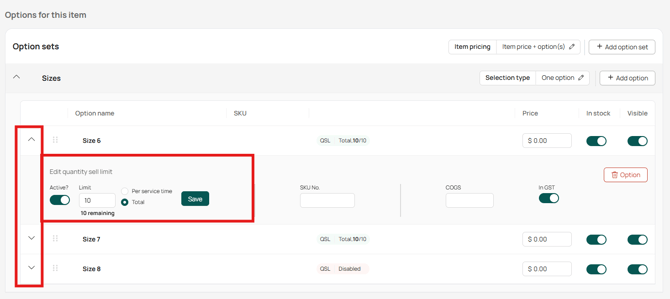
Activate your Shop
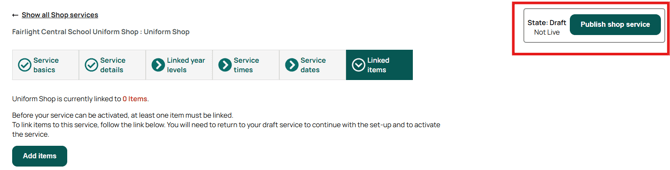
Return to your service settings, Click ‘Publish Shop’ in the top right corner. This will make your uniform shop available for any parents with children in the linked year level.
Previewing Your Shop
To preview your service before releasing it to parents, only link your service to Admin in the ‘Linked Year Levels’ section and comple the following steps.
- Log in to your Flexischools account.
- Ensure you have a test student profile linked to an ‘Admin’ year level.
- Ensure that your uniform ship service is active.
- Your service should appear on the home page of your Flexischools account. Click on the shop Icon to begin placing an order.
When you are ready for your shop service to go live to parents, link the relevant classes to your service by updating the ‘Linked Year Levels’ section.
Need some extra help?
If you need any assistance creating a new event service, please contact our friendly Customer Support Team by calling 1300 590 044, or, by completing our contact form, which can be found here.