
An Ongoing Food Service is ideal for canteens, tuckshops, and regular lunch ordering services that operate throughout the school term or year.
Once created, parents can continue placing orders according to the service days and ordering cut-off times you configure.
If you need help logging in and navigating the supplier portal, please click here.
How to create an ongoing Food Service video walk through
How to add a new food service
- Log in to your Supplier Portal and click ‘Services’ .then 'Food'
- From the drop-down menu, click ‘Add New Service’.

If you don’t have the option to create a new service, you may not have the correct access. Please speak to your canteen manager to request access.
Service Details
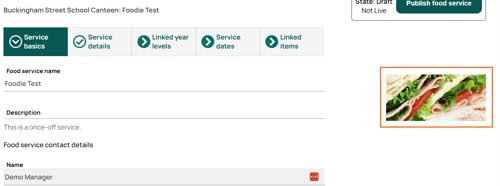
- Enter the details of your service.
- Service Description: This will show to your parents, so include any important details.
- What kind of food service is this? Select 'Ongoing Food Service'.
- Service Contact: This is who we will contact if we need to get in touch and is not visible to parents. If you don’t see your preferred contact, select ‘The site contact I need is not listed’ and enter their details. The ‘Site Name’ is where your service will be held.
- Deposit sale funds: If your bank details are not listed, you will be prompted to complete this form. Our customer service team will then be in touch once the account has been added.
- Add an image. This will be shown to parents on the Flexischools App.
- Scroll to the bottom of the page and click ‘Create’.
- If you are adding your own image, it needs to be the following size:
1920px x 1080px (or a 16:9 ratio).
Don’t worry, you can come back at any time by clicking the 'Order Details' tab.
Linked Year Levels
In this section, you will choose who your Ongoing Food service will be available to. Only parents with a student in the selected year level/s can place orders through Flexischools for your Service.
- Under your schools name you can select the year levels who should be able to purchase uniforms and click ‘Save and Continue’.
- If you have multiple schools/businesses showing on this page, you can select the school(s) where this service should appear.
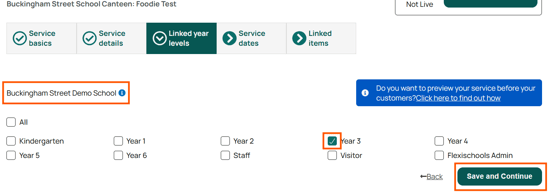
Tip! If you would like to preview your service before it becomes available to parents, link only the admin level for now. Scroll to the bottom of this page for instructions to preview.
Service Times and Dates
-
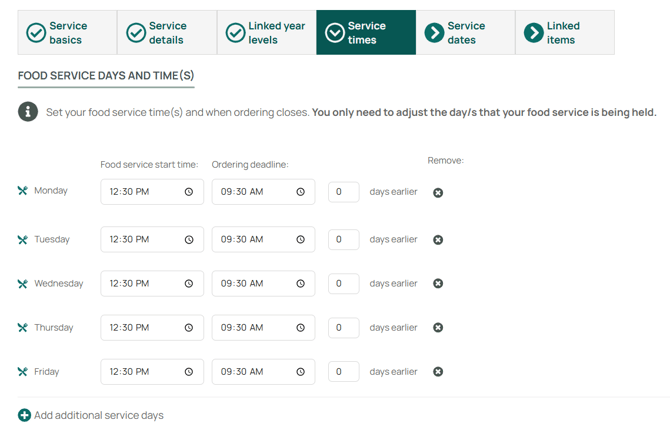
Select your service daysMonday to Friday are pre-populated for your ongoing food service. If your food service only operates on certain days of the week, you can remove any unnecessary days by clicking the x icon next to the relevant day.
-
Set your Food Service Start TimeFor each service day, enter the Food Service Start Time of your service.For example, a school canteen may begin serving lunch orders at 12:30pm. This is the time displayed to parents on their order confirmation email, as the service time for that day.
-
Set your Ordering Deadline
Enter the ordering cut-off time, after which parents can no longer place orders for that service day. You can also specify how many days before the service the ordering deadline will apply.For example:
- 0 days earlier = ordering closes on the day of service.
- 1 day earlier = ordering closes the day before the service.
- 2 days earlier = ordering closes two days before the service.
-
If you require additional service days, or would like to re-add a weekday that has been removed, click Add Additional Service Days to create extra reoccurring days for your food service.
- Click Save and Continue to proceed to the next step.
Service Dates
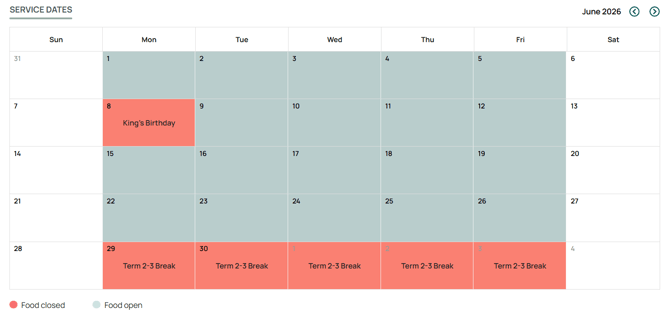
This page provides a visual representation of your food service schedule based on the service days configured in the previous step.
- Grey dates indicate days when your food service is available for ordering.
- White dates indicate days that are not scheduled service days.
- Red dates indicate service days that have been closed and are unavailable for ordering.
Review the calendar to ensure your service days are configured as expected.
If you need to close your service for a specific day, such as a public holiday, pupil-free day, or canteen closure, follow the instructions in our article; Close your service for a day.
Once you are satisfied with your service schedule, click Save and Continue.
Linked Items
On the Linked items page, click on 'Add items', this will take you to your Menu, where you can create and edit Categories, Items and Options.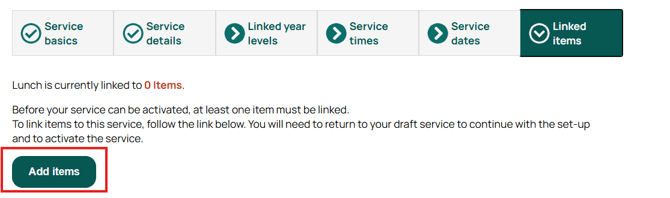
Linking an existing item
- Find the item in your item list (remove the service filter to see all items) and click on the name.
- Under ‘Services the Item Appears in’ use the drop box to select your service.
- Ensure you save your changes by clicking ‘save’.
- Once you have linked all items, select ‘Continue editing [your service]’ at the top of the screen

Creating a new category
If you would like to create an item in an existing category, skip to the next section, 'Creating a new item'
- Click ‘Add Category’.
- Enter the category name and description and select an image.
- Click ‘Create’.

Creating a new item
- Find the category you would like to add your item to and click ‘the green plus’.
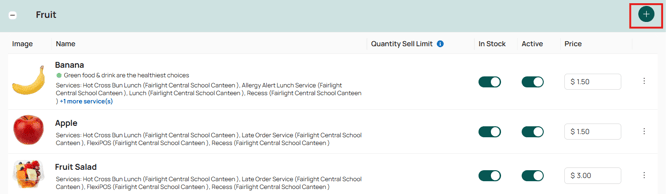
- Enter the name, description, and price of your item.
- If you have a limited number of items available, click the ‘Quantity Sell Limit’ toggle and enter the number of items available.
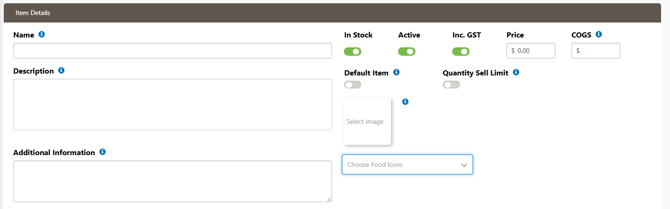
- Under ‘Services the Item Appears Under’ select your service.
- Ensure the ‘In stock’ and ‘Active’ toggles are green, scroll to the bottom and click ‘Create’.
For in-depth details on how to create an item please see the followinging articles:
How to create and edit menu items and Menu Build Gold Standards for Suppliers and Schools
Activate your Service
- Click ‘Publish Food Service’ in the top right corner. This will make your service available for any parents with children in the linked year level.
Note: It may take up to 30 minutes for your service to be visible in the Flexischools App.
Previewing Your Service
To preview your service before releasing it to parents, only link your service to Admin in the ‘Linked Year Levels’ section and completing the following steps.
- Log in to your Flexischools account.
- Ensure you have a test student profile linked to an ‘Admin’ year level.
- Ensure that your service is active.
- You will then be able to see your food service under the 'Order Food' button.
When you are ready for your service to go live to parents, link the relevant classes to your service by updating the ‘Linked Year Levels’ section.
Need some extra help?
If you need any assistance creating a new service, please contact our friendly Customer Support Team by calling 1300 590 044, or, by completing our contact form, which can be found here.