
Stripe onboarding must be completed before you can set up Tap to Pay in FlexiPOS. This means your Stripe Connected Account needs to be fully verified (KYC/KYB completed) before Stripe will appear as a set-up option in FlexiPOS.
If your Stripe onboarding hasn't been completed, Stripe will not show up as a selectable option in Step 2 below. If you don't see it, check with your Flexischools contact that Stripe onboarding has been finished for your account.
Instructions on using Device NFC
1. Complete Stripe onboarding
Ensure your Stripe Connected Account onboarding has been completed. You will only see Stripe as a set-up option once this is done.
2. Open EFTPOS Set-up
- Open the FlexiPOS app.
- From the main sales screen, tap the menu icon (☰) in the top-left corner.
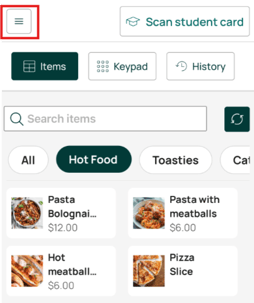
- From the menu that appears, select Settings.

- Scroll down to the EFTPOS section and enable the EFTPOS toggle.
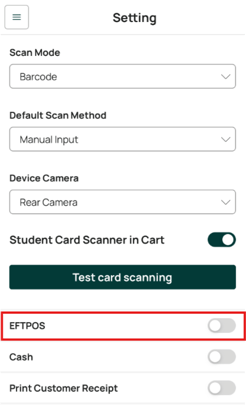
- Once EFTPOS has been enabled, the EFTPOS Setup screen will appear.
3. Select Stripe
You'll be asked to choose an EFTPOS provider from the available options:
- Linkly
- Stripe
- Depending on your set up you may also see ANZ Worldline
Select Stripe.

If Stripe does not appear as an option, your Stripe onboarding may not yet be complete. Please contact your Flexischools representative to confirm that your Stripe Connected Account has been fully verified.
3. Choose your Stripe scan method
The Stripe Set-up dialog will open. Under Stripe default scan method, select your preferred option from the dropdown (e.g. Device NFC).
FlexiPOS will then attempt to connect to your card reader, showing a Connecting to reader... status while it does.
4. Confirm the connection
Once the connection is successful, you'll see a confirmation screen:
✅ EFTPOS has now been connected for use on FlexiPOS.
Select Done to close the set-up dialog.
Stripe Tap to Pay is now enabled and ready to use on your device.
Troubleshooting
- Stripe isn't showing as a set-up option: Confirm that Stripe onboarding has been completed for your account. It won't appear as a provider until onboarding is finished.