
You can print labels for a specific item across multiple orders from the Items tab in Order Management.
This is useful if you need to reprint or print additional labels for orders containing a particular item.
How to print Order labels for a Specific item
- Log in to the Supplier Portal
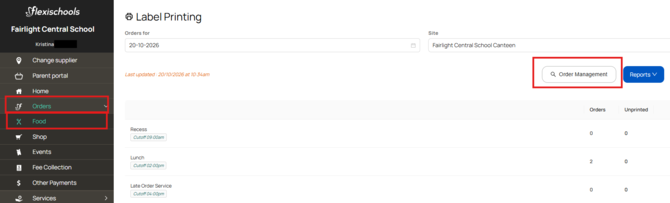
- Navigate to Orders and choose the relevant service type, such as Food.
- Select Order Management.
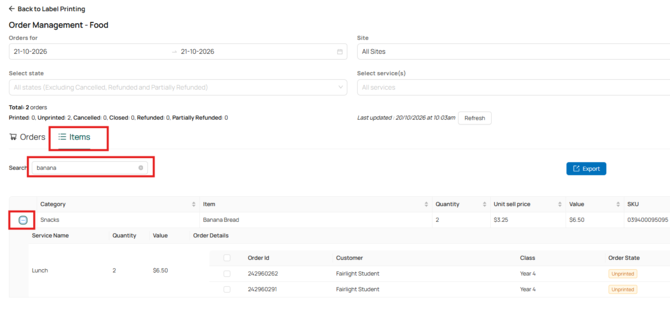
- Click the Items tab and make sure you have selected the correct date range for the orders you need.
- Search for the item you would like to print labels for.
- Click the + next to the item to expand the order details and view the individual orders placed for that item.
-
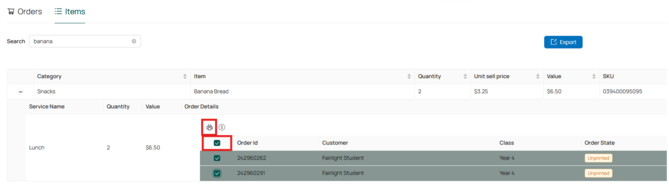
Select the orders you would like to print labels for:
- To select all orders for the item, tick the checkbox next to the Order ID heading.
- To select specific orders only, tick the checkbox next to each individual Order ID number.
- Click the printer icon next to the order details.
- Follow the prompts to print your labels.