
To print labels for events created in the Events Module, you must use the Order Management - Events page.
Step 1: Navigate to Order Management - Events
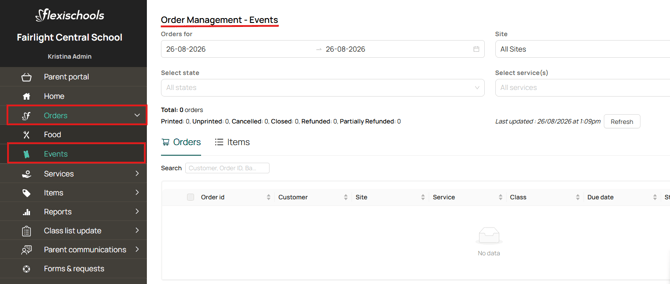
From the Supplier Portal, go to: Orders > Events.
You will be taken to the Order Management - Events page.
Step 2: Select the Event Service Date
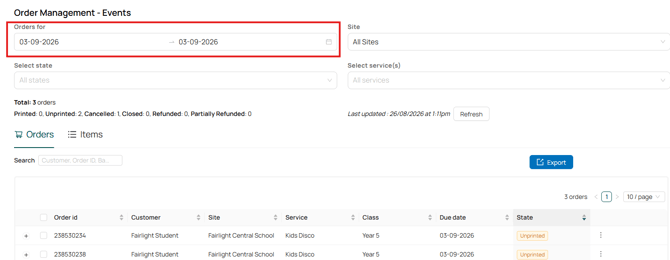
In the Orders For field, select the date the event is taking place.
Important: Select the date scheduled for the event service you created, not the date the parent placed their order. Orders will only appear against the event service date.
Step 3: Select the Correct Event
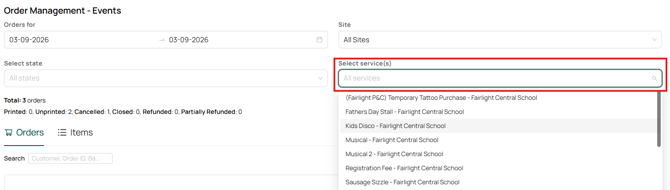
If you have multiple events scheduled on the same date, use the Select Services filter to choose the relevant event.
Step 4: Display More Orders Per Page
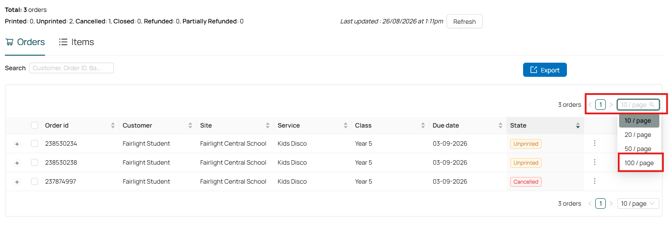
Once the orders have loaded, change the display setting to 100 orders per page.
This ensures the maximum number of orders are displayed per page.
Note: The portal can only bulk print a maximum of 100 orders at a time for Events.
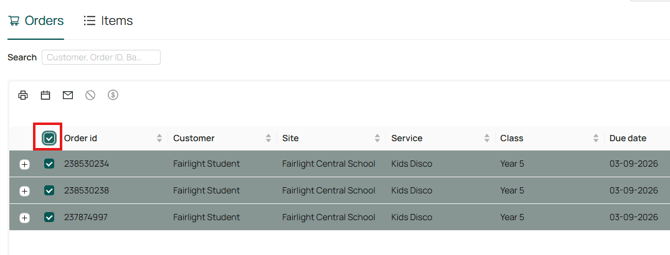
Step 5: Select All Orders
Click the checkbox next to the Order ID column header to select all displayed orders.
Step 6: Print the Orders
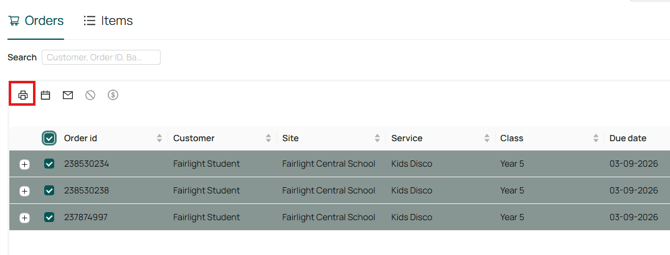
Once the orders are selected, click the Printer icon.
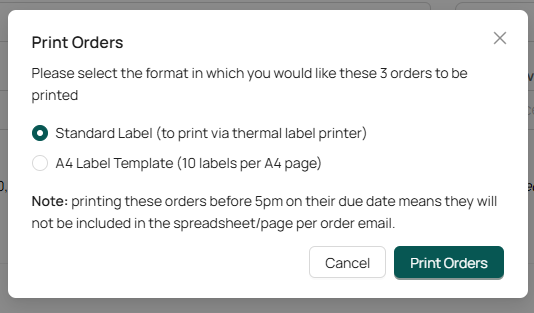
A Print Orders window will appear, allowing you to choose your preferred label format:
- Standard Label – For printing using a thermal label printer.
- A4 Label Template – Prints 10 labels per A4 page.
After selecting your preferred format, click Print Orders to generate the labels.
Printing More Than 100 Orders
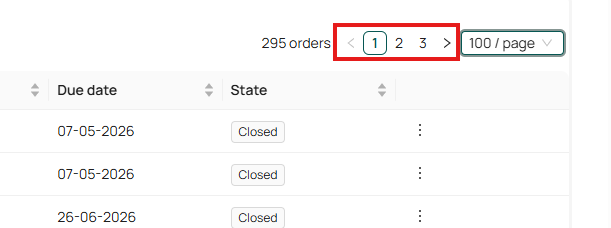
If your event has more than 100 orders, you will need to print them in batches of up to 100 at a time.
- Print the first 100 orders.
- Navigate to the next page of orders.
- Select all orders on the page by following the instructions above.
- Click Print Orders and choose your preferred print format.
- Repeat this process until all orders have been printed.
Frequently Asked Questions
-
Can I use the Label Printing page for Event Services?
No. The Label Printing page is designed specifically for Food Services. Event labels must be printed through Order Management - Events. -
Why can't I see my event orders?
Make sure you have selected the event service date rather than the order placement date.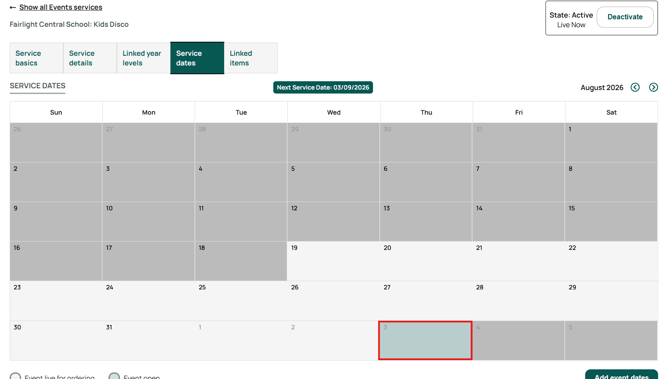
-
How many orders can I print at once?
You can print up to 100 orders at a time. If you have more than 100 orders, repeat the process on the following pages.