
If you would like to set a sell limit on your item options (e.g., drink flavours or uniform sizes), you can do this on the new Options page in your Supplier Portal.
Accessing the Options page
1. Log in to your Supplier Portal.
2. Navigate to Items and select the relevant service category (e.g. Food, Events, or Shop).
3. On the Items Summary page, you can access the new options page using either of the following methods:
-
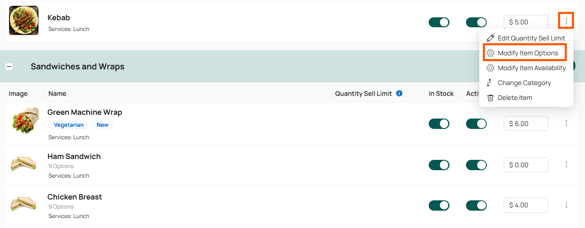
1. Click the kebab menu (the three dots) next to an item and select "Modify Item Options".
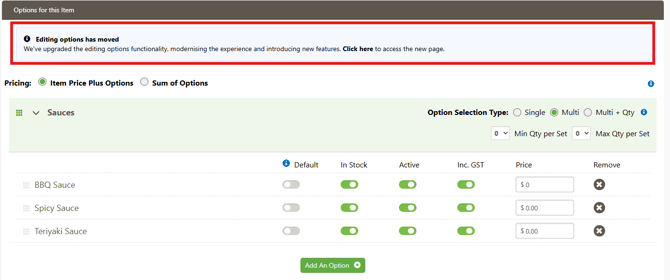
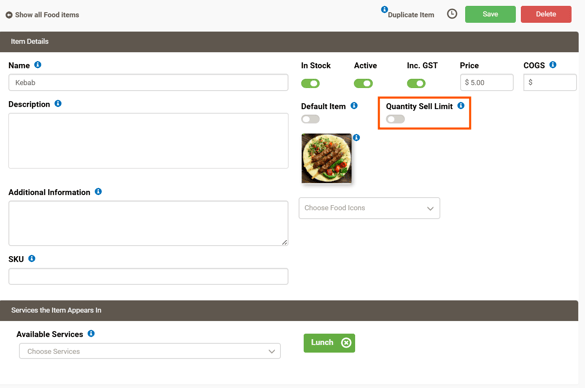
- 2. Or you can also click into the item name and find the "Editing Options has moved" blue box in the options section.
Managing Quantity Sell Limits (QSL) and Stock
You can limit BBQ Sauce to 5 units while allowing Spicy Sauce to be purchased without restriction.
How to Adjust Settings
- Toggle QSL on or off
- Enter a quantity limit
- Choose how the limit is applied:
- Per Service Time - Limits availability for each service period individually.
Example: If the limit is 10, up to 10 items can be sold at lunch and another 10 at recess. - Total - Sets a combined limit across all service times.
Example: If the limit is 10 and 4 are sold at lunch, only 6 remain for all remaining service periods. Once sold out, the item becomes unavailable until updated.
- Per Service Time - Limits availability for each service period individually.
Additionally, you can now also assign SKUs and COGs (Cost of Goods) directly to item options for improved tracking and reporting.
Setting a quantity sell limit on an item
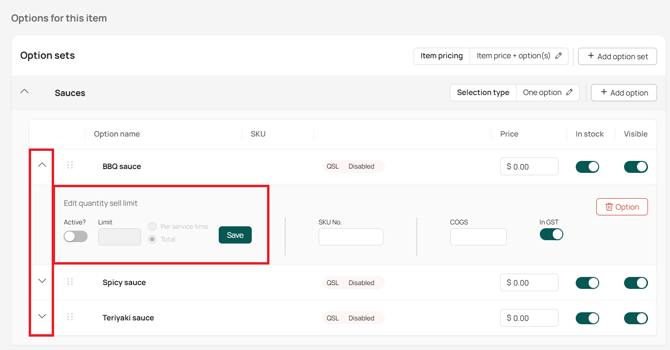
1. Click the arrow next to the item name OR the QSL label (highlighted below) to open additional option settings.
2. Click the 'Active' toggle to enable the sell limit feature.
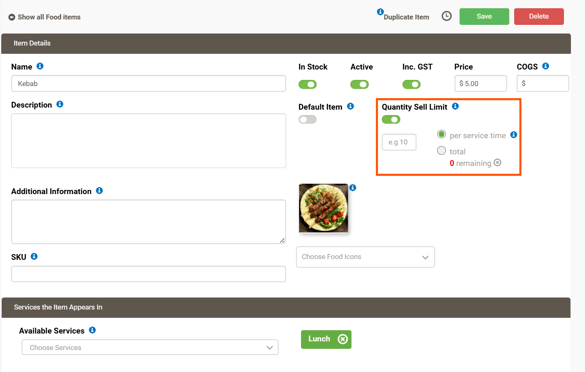
3. Enter your limit and choose whether you'd like to set a 'Per service time' limit or a 'Total' limit.
- Per Service Time - Limits availability for each service period individually.
Example: If the limit is 10, up to 10 items can be sold at lunch and another 10 at recess. - Total - Sets a combined limit across all service times.
Example: If the limit is 10 and 4 are sold at lunch, only 6 remain for all remaining service periods. Once sold out, the item becomes unavailable until updated.
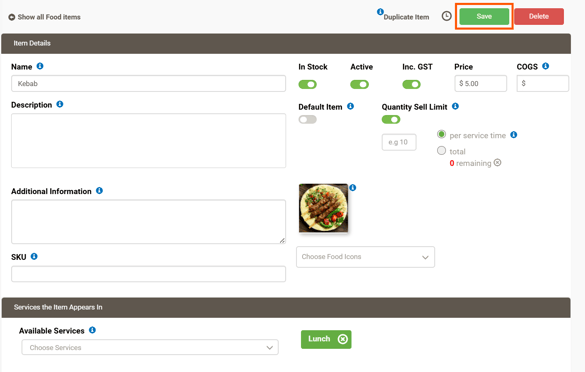
4. Click 'Save' to confirm your changes!
For further assistance, please watch the video guide below: