
This guide outlines the recommended approach for setting up menus, with a focus on creating clear, simple, parent‑friendly product listings. It covers how to structure categories, items, and options, how to use pricing modes, and best‑practice food item examples.
This video is from our Webinar series called Menu /Catalogue Best Practices, and walks through the points covered in this article.
Click here to see our other Webinar recordings, and to sign up for the next upcoming Webinars!
Index
- Creating Categories & Items
a. How to Create a Category
b. How to Create an Item
c. How to Duplicate an Item - Naming Conventions and Descriptions
- When to use Items vs Options
4.1 Pricing Modes for options (Item Price + Options & Sum of Options)
4.2 Option Selection Types
4.3 Default Option Settings - Practical Item Setup Examples
5.1 Sandwich Variations
a. Separate Items for Each Sandwich Type
b. “Make‑Your‑Own” Sandwich Item
c. Flat Items (Simplest Structure with no options)
5.2 Additional Item Examples
a. Drink Options
b. Sushi Rolls (using multi + qty)
c. Size Based Options - Quantity Sell Limit on Options
- Additional Considerations
- Reporting Considerations
- Scheduling and Item Availability Examples
9.1 Item Scheduling Options
9.2 Specific Availability Dates - Common Mistakes and our Top Tips
10.1 Common Mistakes and How to Fix Them
10.2 Top Tips
1. What is a Menu Build?
A Menu Build is the complete process of creating all the products/items that you offer on the Flexischools platform, including creating categories, adding item options, pricing the item and the options, and linking the items to the relevant services.
A Menu Build consists of creating:
-
Categories
Used to group similar products for easier browsing. All items must added under a category
Examples:
- Summer Uniforms
- Winter Uniforms
- Hot Food
- Drinks -
Items
These are the products that parents purchase
Examples:
- Chicken Nuggets
- Cheese Sandwich
- Sports Polo - Options
Used when an item can be customised (size, flavour, toppings, bread type, etc.)Examples:
- White Bread, Wholemeal, Gluten Free
- Add Cheese, Add Tomato, or remove cheese, remove tomato
- Size 8, Size 10, Size 12

2. Creating Categories & Items
a. How to create a category
In the Supplier Portal click on 'Items' then the relevant service type from the left-hand side navigation bar i.e. Food.
- Click 'Add Category' to begin creating your first category.

- Enter the name and description of your category.
-
Click 'Create'.

Category Tips!
- Keep the number of categories small and meaningful.
- Too many categories = lots of scrolling and menu clutter.
b. How to create an item
For an in-depth look at how to create an item please see this guide.
This guide includes detailed instructions on:
- Linking services
- Setting QLS on items
- Setting QLS on options
- Creating and managing availability schedules
- Item images
When creating items, ensure that the item has a clear title and a simple description
c. How to duplicate an item
To duplicate an item:
- Open the item you wish to duplicate
- Click on 'Duplicate Item' in the top right hand corner.
-
A new item will be created automatically
The duplicated item will:- use the same name as the original, with “(2)” added at the end
- have the same price
- appear in the same category as the original
- carry over the same availability settings
- include the same options/modifiers
- retain the same linked services
-
Rename the duplicated item, to the new correct name
-
Review and update item details
Adjust any specific fields such as the price, description, image, available days and QSL.
Please note - QSL does not carry over on duplicated items, and will need to be added in again. - Save the new item


Important: Do NOT rename an existing item unless you are only correcting spelling
Changing an item’s name after it has been used / gone live can affect sales reports including historical data for the item and any outstanding orders.
Renaming an item effectively creates reporting inconsistency because the system treats the updated name as a new reference point.
3. Naming Conventions & Descriptions
Item Titles
- Capitalise each main word (e.g., Chocolate Milk, Chicken & Rice)
- Use & instead of “and”
Item Descriptions
- Start with a capital letter, then use lowercase
- Keep descriptions short, clear, and helpful
i.e. "Beef ragu, topped with parmesan cheese" or" Oven‑baked wedges served with mild seasoning".
Keep it simple, clear, and helpful.
Tip! Keep Item Names Clear and Concise
If your menu includes item names that are long or highly detailed, we recommend shortening the item name to make it easier for parents to read. Any additional information can be moved into the item description.
Example: Instead of listing the item as: “Margherita pizza with Roma tomato, three‑cheese mozzarella, tasty and parmesan with fresh basil” use a shorter, clearer item name such as: “Margherita Pizza” or “Three‑Cheese Margherita Pizza”.
Then include the full detail in the description, such as: “Made with Roma tomato, fresh basil, and a three‑cheese blend including mozzarella, tasty and parmesan.”
This approach keeps your menu tidy and makes items easier for parents to browse and understand.
4. When to Use Items vs Options
- Use an item when the product stands alone.
- Use an item with options enabled when the customer needs to choose how it’s customised.
4.1 Pricing Modes for Options:
At the top of the Options section, there are two pricing modes:
-
Item Price + Options
The main item has a base price, and options add to it.
Best for when the base item is always purchased, and options modify/customise it. -
Sum of Options
The price is based entirely on the options selected — the base item price is not used/is listed at $0.
The total is the price of the selected option(s).
Best for when the parent is choosing between priced versions (e.g., sizes) of the same item/each option has its own standalone price


a. When to Use Item Price + Options
Use Item Price + Options when:
-
the item has a base price, and
-
some variations cost more
Example
Daily Special Pizza meal– $5
-
Includes the standard meal at $5
-
Optional upgrades or add‑ons increase the price
- Add Apple Juice(+$1)
- Add brownie (+$2)
- and/or Options advise a flavour option (no price increase)
- Hawaiian Pizza
- Cheese Pizza
WHY
-
Parents see a real price on the main item
-
Avoids the item showing $0.00 (which happens under Sum of Options)
-
Ensures the parent pays the base item price plus any upgrades
-
Allows required options with no price (such as the flavours) to be enforced without affecting the base price
b. When to Use Sum of Options
Use Sum of Options when:
- The item itself has no fixed base price, and
- The total cost should be calculated entirely from the options selected
Example
- The item has no base price.
- Customers select options, and each option adds to the total.
-
Options might include:
- Fruit Cup (+$2.00)
- Cheese Stick (+$1.50)
- Crackers (+$1.00)
- Yoghurt Tub (+$2.50)
-
Ideal when the price depends entirely on what the customer selects
Suitable for custom snack packs, mix‑and‑match items, grazing boxes, or add‑on bundles. -
Best for items that are fully customisable, with price per options set up
Use this setup when the item is built entirely from the priced components the parent selects. -
Avoids displaying an incorrect base price when the price is dependant on the options selected.
- Supports flexible combinations
Parents can mix and match as many options as needed, and the system simply totals the cost—ideal when there is no “standard” version of the item.
4.2 Option Selection Types
Important to note the difference between Single vs Multiple option vs Multiple + QTY option selection types
Single Select
-
Parent must choose one choice (ie, Milkshake item with flavours as options. Users must choose a flavour)
-
Used for: bread type, size, flavours
-
Appears as radio button list

Multi Select
-
Parent can choose no option, one option, or multiple (i.e. Burger with option to add pickle, cheese and condiments)
-
Used for: toppings, salad items, sauces
-
Appears as checkboxes

Multi + Qty
-
The Multi + Qty selection type works similarly to the standard Multi option, but with added flexibility
- Will show a quantity box allowing the customers to enter the quantity of every option they would like in the set (i.e. they can select “2 × cheese” to indicate they would like two slices instead of just one)
-
Appears as plus/minus quantity controls
-
You can set min and max quantities for the option set, which controls how many additional options a customer can add.


4.3 Default Option Settings
+ option to remove ingredients from an item
If an item includes ingredients by default, you can create options such as:
- Tomato (default)
- Cheese (default)
To do this, mark the option set as a Multi selection type and mark that specific option as default.
This ensures the option appears as already included in the item. If a parent chooses to deselect it, the printed label will automatically display “No Tomato,” clearly signalling that the default ingredient has been removed.
We recommend including in the item description which options are default i.e. "Comes with Cheese as default option" to assists with clarity for parents and guardians when ordering and navigating the default options.

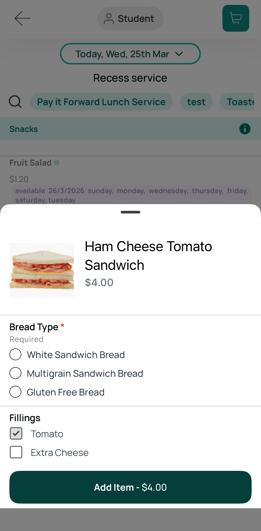 Example from the parent app view. As you can see in this screen shot, the tomato option is pre selected.
Label Example - Ham, Cheese & Tomato Sandwich (Multigrain, No Tomato)
This clearly shows:
-
parent chose Multigrain
-
removed the default option of Tomato

This section outlines best‑practice approaches for building different types of food items using real examples.
It explains:
- WHAT the setup looks like
- WHY you would choose that structure
- HOW it affects labels and reporting
- WHEN each setup is best practice
5.1 Sandwich Variations
Example 1: Separate Items for Each Sandwich Type (Recommended Standard)
WHAT this setup looks like
Create one item per sandwich, with options grouped by type:
-
Item: Cheese Sandwich
-
Option Set 1 (Single Selection Type): Bread
- White Sandwich
- Wholemeal Sandwich
- Gluten-Free (+$0.50)
-
Option Set 2 (Multi Selection Type): Salad
- Lettuce
- Tomato
- Cheese (default)
Tip! If Cheese is set as a default option, and the parent deselects it, the label will show: "No Cheese". If you do not want to make an option as default, you could add in an option called "No cheese" instead, and when the parent selects this "no cheese" will show on the order.
Important
Keep “Tomato” (salad) and “Tomato Sauce” (condiment) distinct for clear labels and reports, as option headings are not shown on labels.
WHY this is used
- Clearest for parents
- Best label output
- Easy‑to‑read reporting with less item variations
When to choose this setup
- Standard canteens
- Consistent pricing across ingredients
- When parents need a simple selection process and a few customisations - not fully customisable


Example 2: “Make‑Your‑Own” Sandwich Item (Highly Customisable)
WHAT this setup looks like
- Item: MYO Sandwich ($3 base price for example, using Item Price Plus Options for pricing. Sum Of options may also be used for an item set up like this when options are priced accordingly)
Option Set 1 (Single Selection Type): Bread
- White
- Wholemeal
- Roll (+$0.50)
- Wrap (+$0.50)
- Gluten Free (+$0.50)
Option Set 2 (Multi Selection Type): Fillings
- Ham (+$1.00)
- Chicken (+$1.00)
- Tuna Mix (+$1.00)
- Lettuce (+$0.20)
- Tomato (+$0.20)
- Cheese (+$0.20)
- Cucumber (+$0.20)
- Grated Carrot (+$0.20)
- Avocado (+$0.50)
- Boiled Egg (+$1.00)
- Option Set 3 (Multi Selection Type): Sauces and Spreads
- Butter
- Vegemite
- Mayonnaise
- Hummus
- Sweet Chilli Sauce
- BBQ Sauce
- Tomato Sauce
Option Set 4 (Multi Selection Type): Toasted
(Multi selection type for an option set with only one option allows the parent to scroll past without needing to select it, if they don't want it)
- Toasted (+$0.50)
WHY this is used
- Ideal for canteens offering high customisation
- Reduces the need for 10–20 separate sandwich items
- Gives parents full flexibility
Trade‑offs
- One item = many option combinations
- Reporting can become long and appear more complex as there will be different variations for the one item
- Requires canteens with more staff and prep time
When to choose this setup
- Large canteens
- With experienced or well-staffed prep teams
- Ample item prep time, as customisations can take longer to prepare
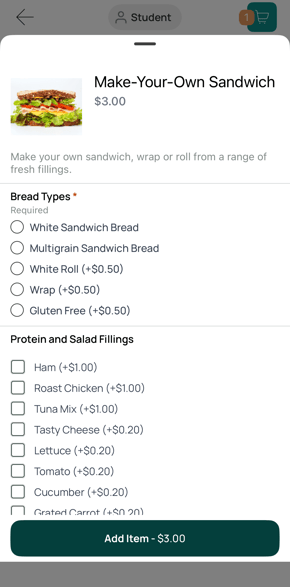 In app parent view.
 Label example.


Tip! Add a Min and Max QTY Per Set to limit how many of the options can be selected in a particular option set. This feature ensures customers cannot over‑select from the options, and supports consistent, rule‑based product setup. i.e. 3 sauces and spread can be chosen per sandwich.
See section '7. More Options = More Reporting Lines' for an example of a report for the MYO sandwich item.
Example 3: Flat Items (Simplest Structure with no options)
WHAT this setup looks like
Single, pre-defined items:
- Chicken, Lettuce & Avocado Wrap
- Ham & Cheese Toastie
- Egg & Lettuce Sandwich
Details go into the description, e.g.
“Made on wholemeal bread unless otherwise specified.”
WHY this is used
- Simplest for parents
- Cleanest labels
- Most readable reports
- Minimal setup required, no changes needed to menu items
When to choose this setup
- Small canteens
- Limited staff
- Simple menu
- Minimal customisation

5.2 Additional item examples:
Example 4: Drink Options
Item: Flavoured Milk 300ml
Option Set (Single selection type): Flavour
-
Chocolate
-
Strawberry
-
Banana
-
Caramel
WHY and WHEN:
Requires one mandatory choice - use Single Option Selection Type when you need one flavour option to be chosen.
Example 5: Sushi Rolls
Example 5.1 — Multiple Sushi Rolls added to cart via options+ item flavour selection (using multi + qty)
For clearer reporting, it’s often recommended to include the sushi flavour in the item name rather than using an option (like Example Type 1, Seperate items for Each Sandwich Type), however, I have provided an example of both below.
Item: Sushi
Option Set 1 (Single): Sushi Flavours
-
Tuna and Avocado
- Salmon and Cucumber
- Teriyaki Chicken
- Cucumber and Avocado
Option Set 2 (Multi + Qty): Extra Sushi Roll
-
Extra Tuna Roll (+$2)
-
Extra Avocado Roll (+$2)
WHEN: Parent may want 2× or 3× the same option, use Multi + Qty.
Example with Sushi Flavour as the first option set and Extra Sushi Roll as second option set:
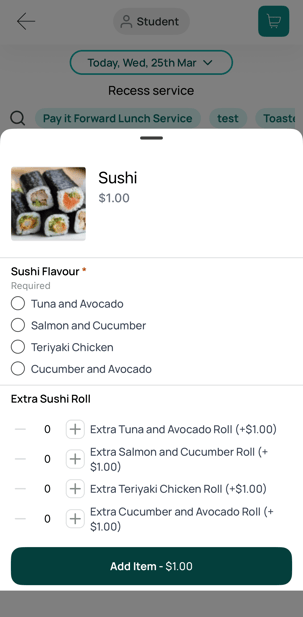 Parent app view.
 Label example.

Example 5.2. with Sushi Flavour indicated in item name, rather than as an option, and second option set of Extra Sushi Roll:
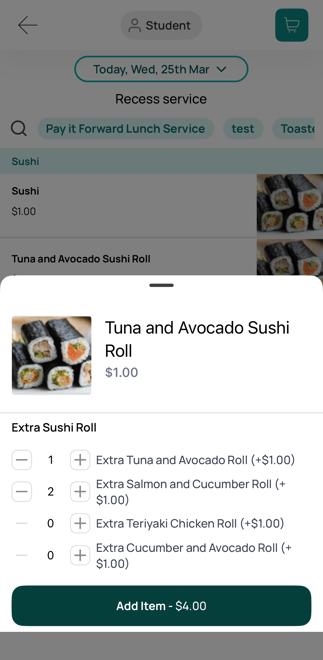 Parent app View.
 Label Example.

Example 6: Size Based Options
Example 6.1: Pasta sizes and Sum of Options
Scenario — Small/Medium/Large Pasta options
Use Sum of Options and price each option separately:
-
Small: $5
-
Medium: $6.50
-
Large: $8
WHY:
Each size is its own price allocated.
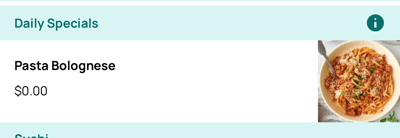
-png.png?width=399&height=589&name=IMG_8639%20(1)-png.png)

TIP! If you prefer for the price to always be displayed for the parents, use Item Price Plus Options. Set the base item as the smallest size and price, and increase the price and size through the options, as per the example below.
You can include that the base item is size small in the description.
Example 6.2: Small/Medium/Large Pasta options. Item Price plus Options pricing
-png.png?width=401&height=140&name=IMG_8640%20(1)-png.png)
 Parent View

6. Quantity Sell Limit on Options
Click the “Editing options has moved” link, and you’ll be taken to the new, detailed Options Management page.
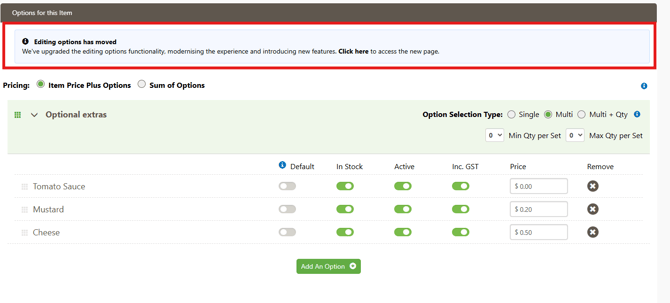
This is great for end of term when you are not ordering new stock and need to limit what is remaining.
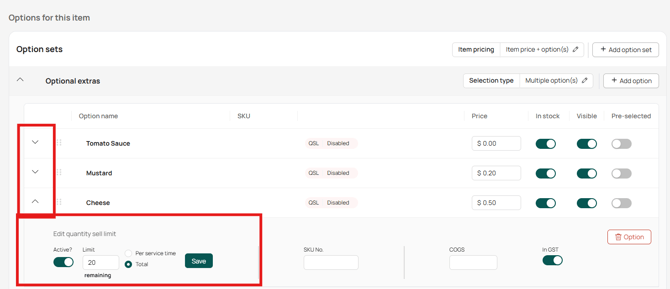
7. Additional Considerations
How many options can your canteen realistically handle?
More options =
- longer prep times
- higher error risk
- longer printed labels
- longer reports
Choose the structure that matches the capacity of your canteen. If you're unsure we recommend starting with less options and increasing when you have more understanding of your capacity.
8. Reporting Considerations
More Options = More Reporting Lines
Every item variation becomes its own reporting line.
This can lead to 50+ variations under one item, especially for the Make your Own items.
Because MYO creates so many possible combinations, you may end up with multiple single‑variation lines for what is essentially the same item prepared in slightly different ways. For this reason, we suggest that MYO should be used sparingly and only when you have the capacity to mange this kind of item, as it can significantly increase reporting complexity.

9. Scheduling and Item Availability Examples
You can manage scheduling in two places:
- The updated “Editing options has moved” page (under the QSL settings), or
- The main item creation page, at the very bottom.

9.1 Item Scheduling Options
- Not Defined - No repeating cycle is set.
- Weekly – Item repeats weekly on selected days.
- Fortnightly – Item repeats every two weeks.
- Every 4 weeks - Item repeats on a four‑week rotation (perfect for rotating menus).
- Specific days only - Only available or unavailable on manually selected dates.
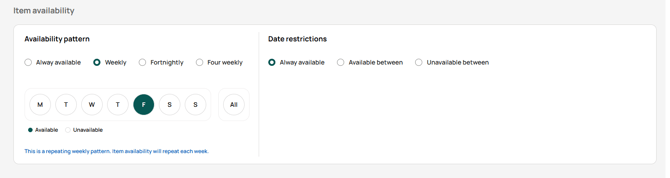
4‑Week Rotation Tip! If you are using a 4‑week rotating menu, set this up through the “Editing options has moved” page. This provides the 4 week calendar with clear date references, making it easier to identify which week is week 1, validate the rotation visually and ensure items fall on the correct weeks/days.
To ensure your item lines up with the correct rotation:
- Identify the rotation weeks and dates
- Determine which dates fall into Week 1, Week 2, Week 3, and Week 4 based on your schedule.
- Most rotating menus are based on the weeks of the school term. - Apply your availability schedule to each item based on those dates
- Impersonate a parent
- Create a test student for your school and set your year and class as 'admin'.
- Go to the parent ordering view
-Open the service where the item should appear. - Check how the item appears in app
-Look at the days the item shows as available for parent ordering. - Cross‑reference and confirm accuracy
- Ensure each item only appears available for ordering on the intended dates.
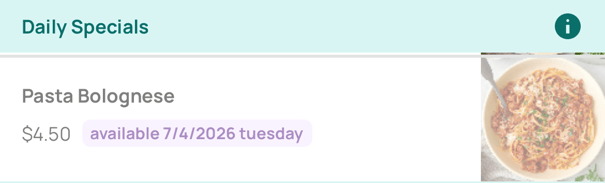
 Item Availability calendar as per the "editing options has moved page"
9.2 Specific Availability Dates
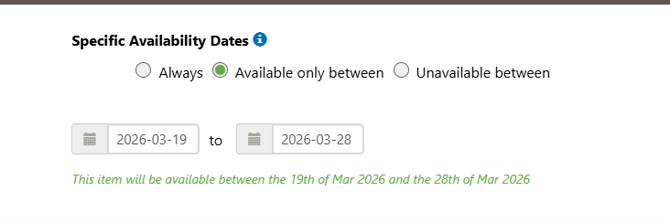
This section allows you to limit the item to a particular date range or exclude it during certain dates.
You can choose from:
- Always – The item is available all year, as long as it aligns with the weekly schedule.
- Available only between – The item can only be ordered between two specified dates (e.g., a seasonal menu item, or only available for first half of term).
- Unavailable between – The item is blocked during specific dates (e.g., chef unavailable, supplier shortages, etc).
10. Common Mistakes and our Top Tips
10.1 Common Mistakes and How to Fix them
1. Double-charging or up-charging the customer incorrectly
Mistake:
a. Double charging for same item - Base price has been entered AND option prices are added for the same component.
b. Up charging customer due to wrong selection type - Single selection turned on where multi should be, forcing customer to purchase unwanted options.
Fix:
a. If using Item Price + Options keep the item priced only for the core product and remove any option pricing that is not for an additional add‑on.
b. Ensure Multi selection type is turned on where priced options are included and optional.
2. Leaving required option groups optional
Mistake:
Using multi‑selection with no minimum requirement set, or using multi‑selection when single‑selection is the correct option. This allows parent to skip selecting an option, which can result in incomplete orders, and not knowing what flavour they need or how to finalise preparation for the order.
Fix:
Ensure option selection type is single OR when using Multi ensure a min and max per set is chosen, e.g. Min 1 and max 2.
3. Using Sum of Options where the options are $0.
Mistake:
When the pricing mode is set to Sum of Options and every option is priced at $0, the calculated total item price becomes $0 at checkout, even if the item should have a cost.
Fix:
Update the item pricing mode to be Item Price Plus options or assign prices to each option if you intend to continue using Sum of Options, ensuring each option has the correct price applied so the total reflects the actual cost for the item.
This can cause the available stock to be miscalculated as QSL does not take into account existing orders, only orders placed for the item after QSL is turned on, which can lead to over‑ordering of the product.
Fix:
10.2 Top Tips
- Test and validate the items or service before going live
Link the service to Admin Only and view the item from the parent ordering screen.
This lets you:- Confirm the options appear and option selection type is as intended
- Check that QSL, scheduling, and pricing behave as expected
- Validate all items and ordering flow
- Always preview your labels
When many options sets are used, always check how the item and its options appear on printed labels.
- Place a test order
- View the print preview
- Ensure all options display clearly and in the right order
-
Use clear, simple language
Parents should understand exactly what each option means.
Avoid abbreviations unless widely understood. - Use consistent naming
Keep naming uniform across items and options, and avoid vague or unclear option labels.Avoid using vague labels such as “Regular,” “Special,” or “Custom,” as these terms do not provide enough context about size, flavour, or type. Instead, use clear, specific wording that includes key details where possible—for example, 300ml, 500ml. -
Always check your pricing mode
Make sure the pricing mode accurately matches how the item and its options are intended to work—particularly when switching between modes such as Item Price Plus Options and Sum of Options, or when changing the option selection type (single, multi, or multi + quantity). Using the wrong pricing mode can result in unexpected or incorrect prices being displayed to parents during checkout.
-
Avoid duplicate or similar options
Clear, distinct options help users find what they need quickly. Duplicates clutter menus and make navigation feel overwhelming or disorganised. - Order options logically
Place the most common or most important options at the top.
Use drag‑and‑drop to reorder them for easier parent selection.