Using images on your menu looks great and helps parents identify items quickly and easily.
In supplier portal you can upload your own images in the item edit screen, simply click on the item name, then on the item image section.
How to Add or Update an Item Image
Step 1: Find Your Item
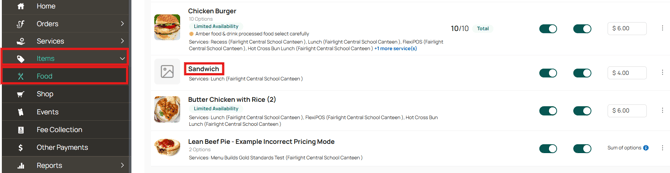
- Click on the Items tab.
- Select the relevant event module (for example: Food or Shop).
This will take you to the Items page. - Click on the item name to open the item editing page.
You can also follow these steps while creating a new item.
Step 2: Select or Upload an Image
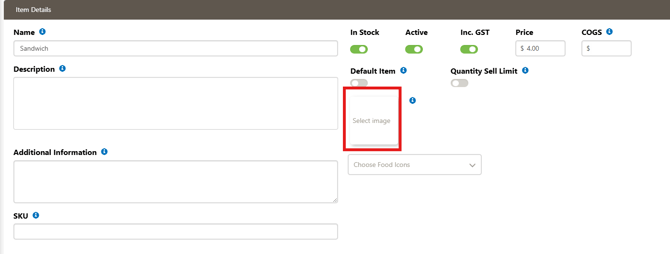
- On the item editing/creation page, click the Select Image box.
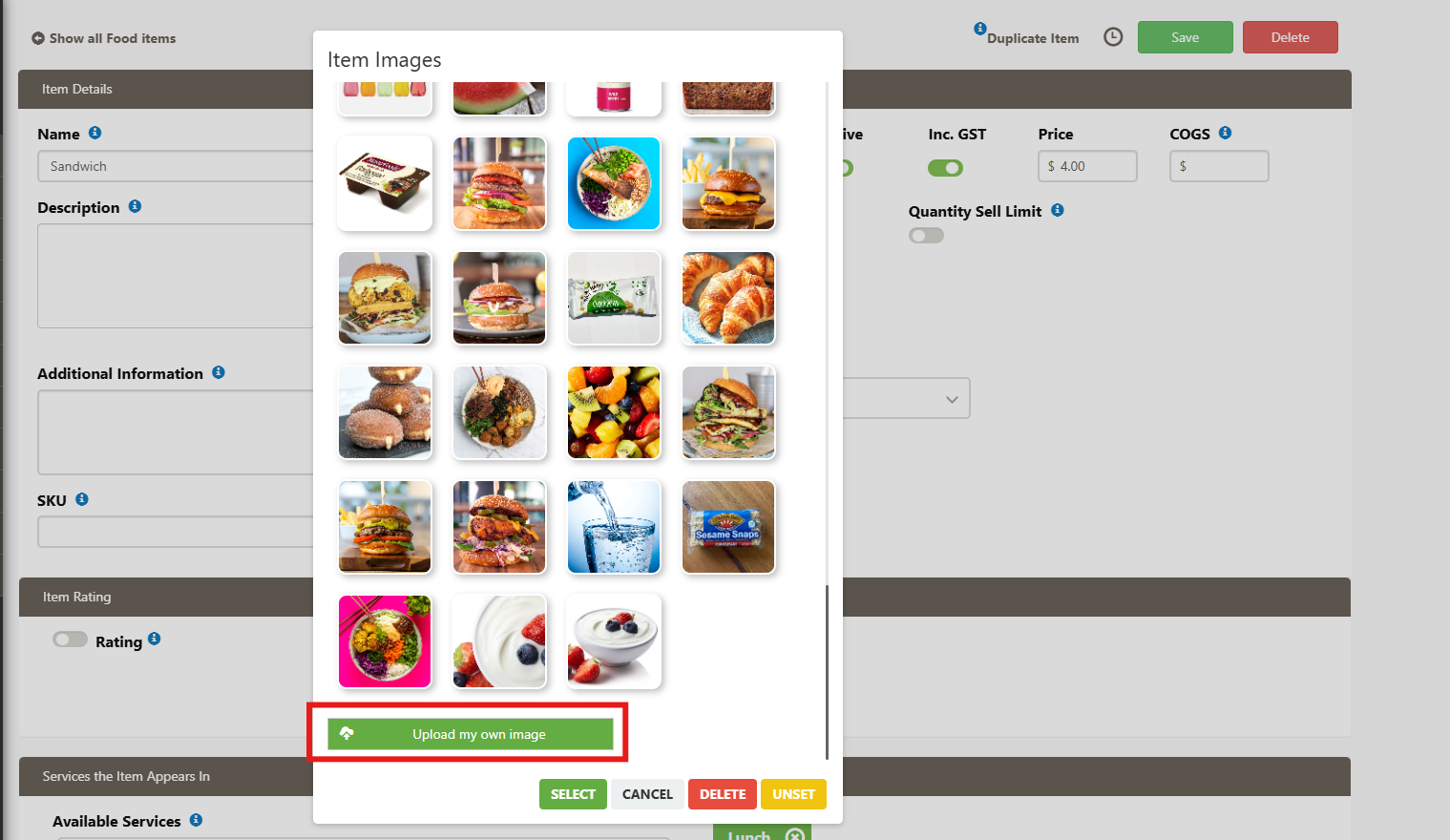
- A window will open showing all images already uploaded to that module.
- From here, you can:
- Select an existing image, or
- Upload a new image from your computer.
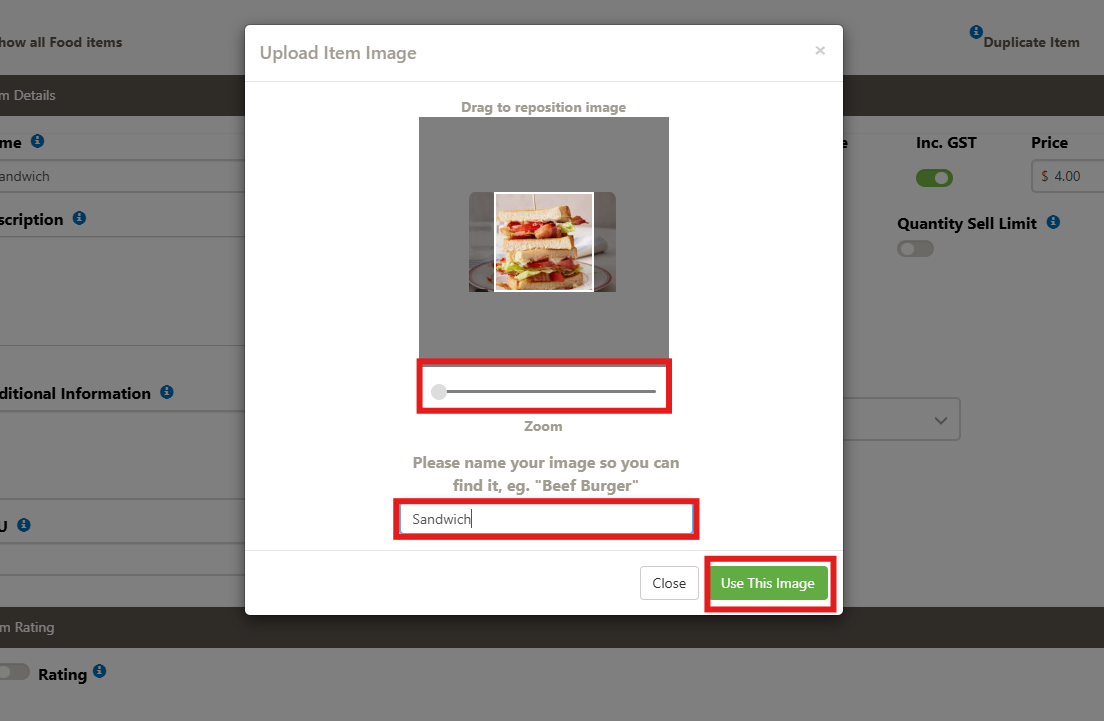
Step 3: Adjust and Save the Image
- Once you’ve selected your image, resize it to fit the image box.
- Enter a name for the image.
- Save your changes.
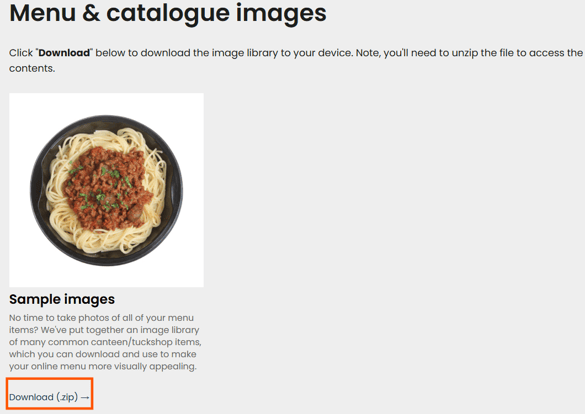
If you don't already have an image to use please see below link where you can download with some common food items in our website and you can upload onto your menu.