
Accessing your menu
How to edit an item:
-
To edit an existing item, simply locate it in your Items list and click on the item name. This will open the full item editing page, where you can update details such as the description, pricing, availability, images, options, and service links.
See the instructions below for further information on each field within the item creation and editing page. These details will help you understand how to correctly configure item settings, availability, pricing, and options within your food service.Tip: Create New Items Instead of Renaming
Avoid renaming an existing item unless you are correcting a small spelling error. Renaming can affect your reports, order history, stock tracking, and any linked food services. If you're introducing a new menu item—such as replacing Hamburger with Cheeseburger—it's best to duplicate the item or create a new one from scratch. This keeps your menu data accurate and prevents confusion.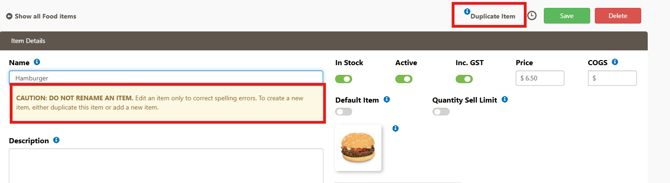
How to add an item:
- Find the category you would like your item to appear in and click the plus icon to the right of the category name.
If the category you require is not listed, you can find the instructions on how to create it here.
In the below example, an item will be added to the 'Sandwiches' category.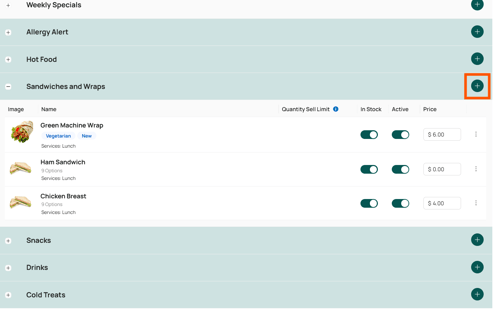
- Enter the name, description, and price of your item.
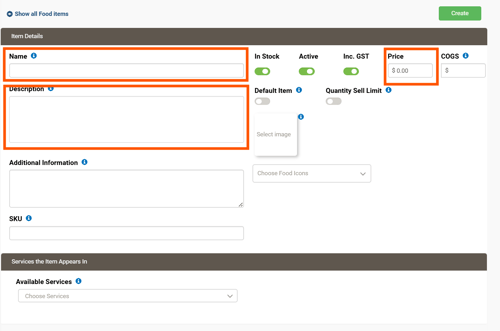
Note: if you would like the price of your item to change depending on the options selected, we will do that in the 'options' section. - If you like, you can enter a SKU (stock keeping unit) to keep track of your inventory and assist in selling items through Flexipos when linked with your item, if you have a scanner. This won't be visible to parents. Then add food icons like 'vegetarian' and 'homemade', which will show to parents.

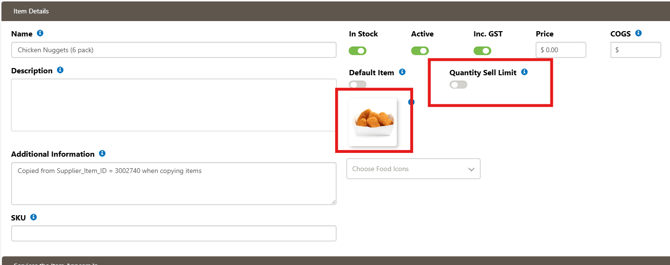
- You can upload an image of the product to help parents identify exactly what they’re ordering.
The image displays alongside the item name in your service. -
Quantity Sell Limit Once you have created your item, you can choose to add a quantity sell limit if you have a limited number of items available.
- Click the 'Quantity Sell Limit' toggle and enter your quantity of items.
- Select on the below options.
Per Service Time: means that each service that is set up, ie Recess, Lunch, the QSL limit applies separately for each service and resets every day that service occurs.
Total: This option places a fixed overall limit across all services.If no limit is needed, leave this field turned off.Once the total limit is reached, the item will remain at 0 available until you manually reset it.
- Click the 'Quantity Sell Limit' toggle and enter your quantity of items.
- Choose the service that you would like your item to appear in.
Use the dropdown to select the service (e.g., Uniform Shop).
Once selected, the item becomes linked and will appear for ordering in that service. Items can be linked to multiple services.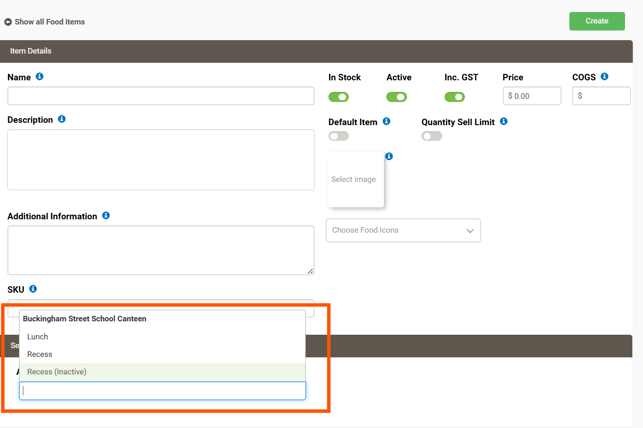
- Scroll down and click 'Create', which will then allow you to add options to the item.
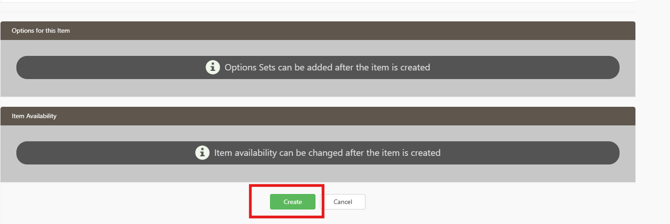
- The Options for this Item section lets you add, manage, and price additional extras or variations associated with your food item — such as sizes (small/large), flavours, extras, toppings, or drink choices.
Click “Add a Set of Options” to begin.
You will be prompted to create a heading (e.g., Size, Drink Choice, sauces, Add-ons), and then you can add your individual options beneath it.
Each option has a In stock toggle, Active/Visible toggle, Inc. GST toggle, Option-specific price and Remove option button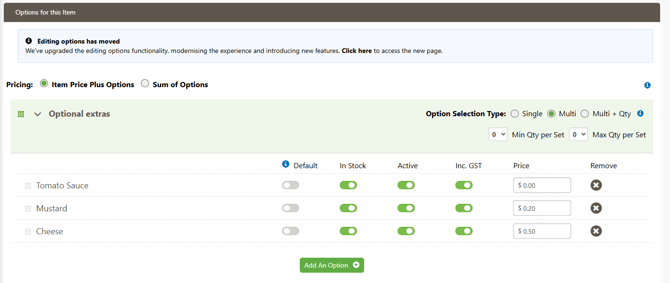 Pricing for Options: At the top of the Options section, there are two pricing modes:
1. Item Price Plus Options You set a base item price, and options add additional cost on top.
Use this when only some variations cost more, for example: Base item price of sandwich is $5, add cheese option + $0.50, add avocado + $1.002. Sum of Options The price is based entirely on the option selected — the base item price is not used.
Use this when each option has its own standalone price e.g. option for small fried rice: $4, option for large fried rice: $6.
Option Selection Type: You can choose from three Option Selection Types, depending on how you want families to select variations:
1. Single: A single option type means the customer can only select one choice from the list. They must pick one option before continuing, and they cannot choose more than one. e.g small or large
2. Multi: A multi option type allows customers to select multiple different options, or scroll by without selecting any, if the option listed is not mandatory to be selected. This type can also include minimum and maximum selection limits, meaning you can require them to choose at least one (or more) and cap the total number of selections if needed.
Useful for toppings, add-ons, or sides, where they can select more than one of the options listed.3. Multi + Qty: Multi + quantity is similar to Multi, but with an extra layer. Customers can choose multiple units of the same option. For example, they can select “2 × cheese” instead of just one, to indicate that they would like two slices. This is useful when options can be purchased in multiples.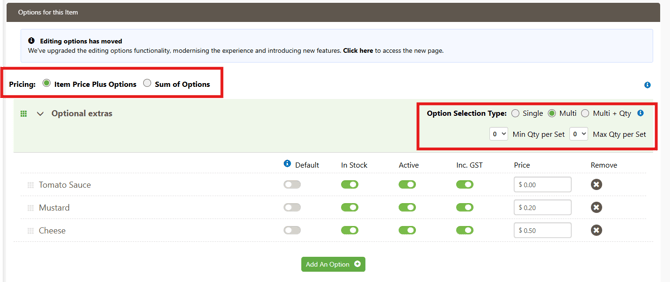
Editing Options Has Moved
When you select the updated editing area (via the “Editing options has moved” link), you’ll be taken to a more detailed options management page.
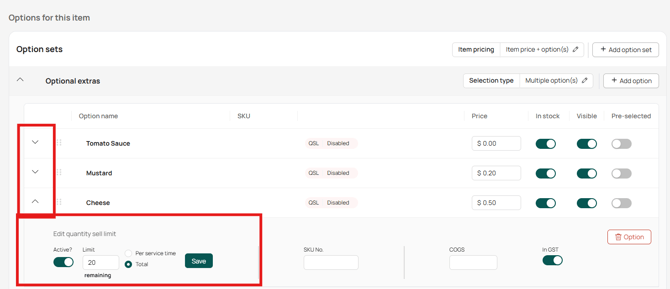
This new interface allows you to manage Quantity Sell Limits (QSL) and stock settings for each individual option you’ve created. E.g. you can limit the cheese option to be 20 available but allow unlimited purchases for sauce.
To adjust these settings, simply click the arrow to the left of the option name to expand its details. Within this dropdown panel, you can toggle the QSL on or off, enter your limit, choose whether it applies per service time or as a total across all services, and save your changes.
These controls must be managed through this new options page. They no longer appear on the original item screen.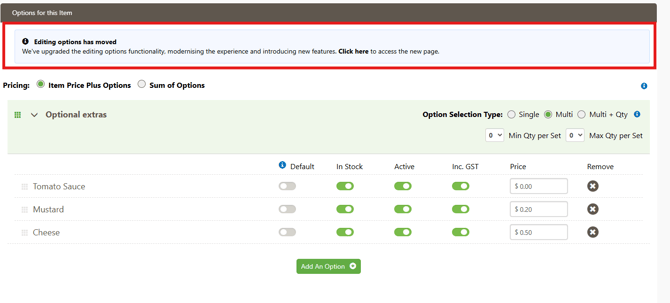
For more information on item options, please see our guide here. -
The Item Availability section allows you to control when a food item can be ordered. This ensures that weekly meal specials, or limited‑availability products only appear for parents on the days you intend them to be offered.
This can be managed for the item in the Editing options has moved page, underneath the QLS for the options,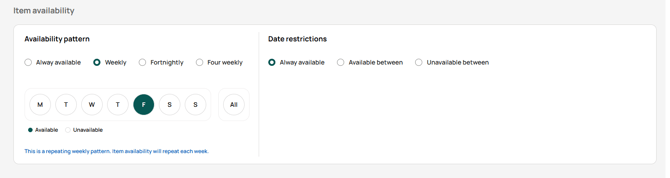
or on the main item creation page at the very bottom.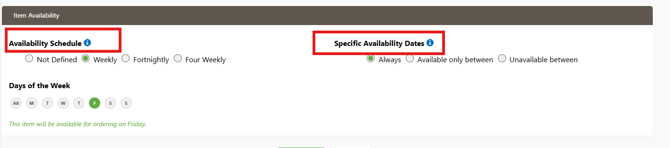
This area is divided into two parts: Availability Schedule/pattern and Specific Availability Dates/date restriction.
1. Availability Schedule This setting determines the repeating pattern (or cycle) for when the item is available.You can choose from:
- Not Defined – No repeating pattern is set.
- Weekly – The item is available on selected days every week.
- Fortnightly – The item repeats on a two‑week cycle.
- Four Weekly – The item repeats on a four‑week cycle (useful for rotating menus).
Below this, you can select the Days of the Week the item is available within the chosen schedule. For example, in the screenshot, Friday (F) is selected, meaning: This item will be available for ordering on Fridays only.
When creating a four‑weekly rotating menu, we recommend setting this up through the “Editing options has moved” page. The four‑weekly calendar presented in that interface provides clear date references, making it much easier to plan and organise your rotating meal options accurately.
Green days indicate days that the item will be available for ordering.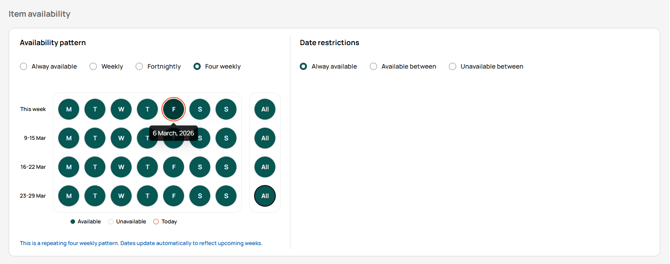
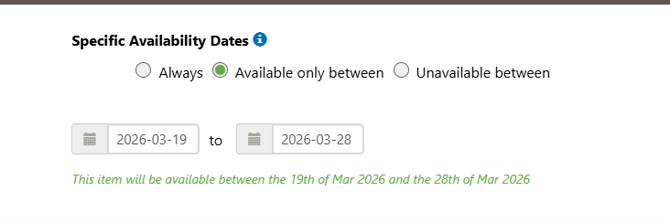
2. Specific Availability DatesThis section allows you to limit the item to a particular date range or exclude it during certain dates.
You can choose from:
- Always – The item is available all year, as long as it aligns with the weekly schedule.
- Available only between – The item can only be ordered between two specified dates (e.g., a seasonal menu item).
- Unavailable between – The item is blocked during specific dates (e.g., chef unavailable, supplier shortages, etc).
-
Once you have finalised editing and creating your item, press save.
How to duplicate an item
To duplicate an item:
- Open the item you wish to duplicate
- Click on 'Duplicate Item' in the top right hand corner.
-
A new item will be created automatically
The duplicated item will:- use the same name as the original, with “(2)” added at the end
- have the same price
- appear in the same category as the original
- carry over the same availability settings
- include the same options/modifiers
- retain the same linked services
-
Rename the duplicated item, to the new correct name
-
Review and update item details
Adjust any specific fields such as the price, description, image, available days and QSL.
Please note - QSL does not carry over on duplicated items, and will need to be added in again. - Save the new item


Important: Do NOT rename an existing item unless you are only correcting spelling
Changing an item’s name after it has been used / gone live can affect sales reports including historical data for the item and any outstanding orders.
Renaming an item effectively creates reporting inconsistency because the system treats the updated name as a new reference point.
Related and recommend Articles:
-
Menu Build Gold Standards for Suppliers and Schools
For a comprehensive guide to building and managing menus in Flexischools, including creating categories, items and options, choosing the right pricing and option settings, managing availability and quantity limits, and creating clear, parent-friendly product listings, please refer to our Menu Build Gold Standards for Suppliers and Schools guide. The guide also includes practical food item setup examples, reporting considerations, common mistakes to avoid, and best-practice recommendations to help create an easy ordering experience for parents and a manageable menu structure for your team.
- How to add images / photos to your menu
- How to set a sell limit on item options and items