
- Log into the Supplier Portal. Select 'Orders' and then the relevant service category.
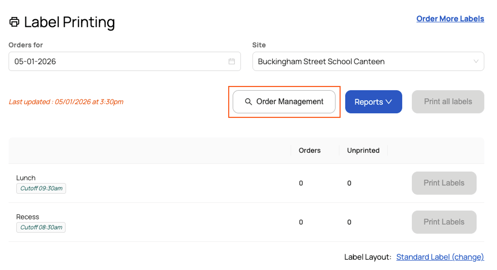
- If you selected Food or Shop, click 'Order Management'.
-
- For all other categories, you will land directly on the order management page.
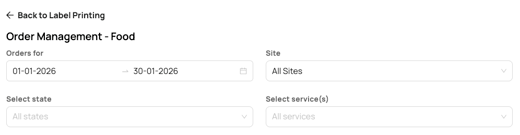
- Use the filters at the top of the page to select the date range, sites, order states and/or services that you would like to report on.
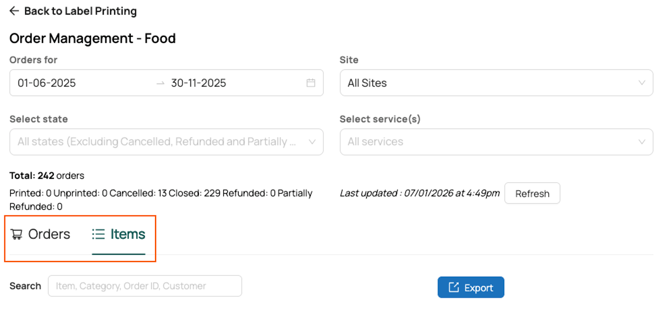
- Choose the report type:
- Orders: shows each order that matches your filters. Includes order ID, order state, customer details, order details and total price.
- Items: shows each item sold that matches your filters. Includes total quantity sold, price and SKU.
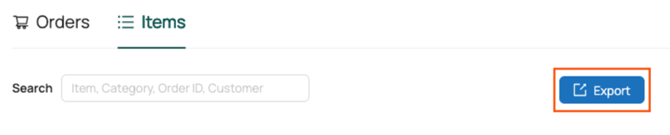
- Click 'Export'.
- The file will download to your Downloads folder. Click the file to open the report.