
The Reports section in the Supplier Portal includes a range of reports to help you manage your day-to-day operations, review sales and transactions, monitor quantity limits, track registrations and access account information.
Looking for reports to help with daily food preparation?
View our guide to Daily Order Reports for Food Production
Where are reports located?
You can access reports from the Reports section in the main menu of the Supplier Portal.
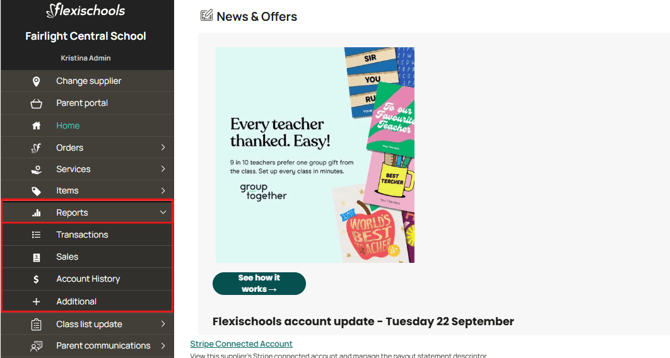
What reports are available?
Reports are grouped into four headings:
- Transactions
- Sales
- Account History
- Additional.
Each section contains a number of reports designed for different operational and business needs.
Depending on your setup, you may also have reports available for FlexiPOS and student card transactions.
Quick Guide: Which Report Should I Use?
| If you want to... | Use this report |
|---|---|
| Check how registrations are tracking | A01 - Registration Report |
| Review individual registered users and students | A02 - User Summary |
| See all configured products/items | A03 - All Items |
| Check overall sales and transaction value | S01 - Sales Report |
| Review monthly supplier activity and performance trends | S02 - Supplier Monthly |
| Review item sales or sales by class | S03 - Item Summary |
| See how many of a specific item were sold | D01 - Sales by Item |
| Review quantity/sell limits | D02 - Quantity Sell by Item |
| See online orders and POS transactions | D03 - Transaction Summary: Orders and POS |
| Review responses/options attached to transactions - great for events and uniform shop - where questions are asked on items | D04 - Question Set Transaction Summary |
| Prepare upcoming pre-orders | D05 - Pre-Order Report |
| Review FlexiPOS transactions | P01 - FlexiPOS Transaction Summary |
| Review student card-based transactions | P02 - Transaction Summary Cards |
| Reconcile account activity | Account History |
| Reconcile a payment/remittance | Remittance Advice (emailed to finance contact separately) |
How to Run a Report
Once you've identified the report you need:
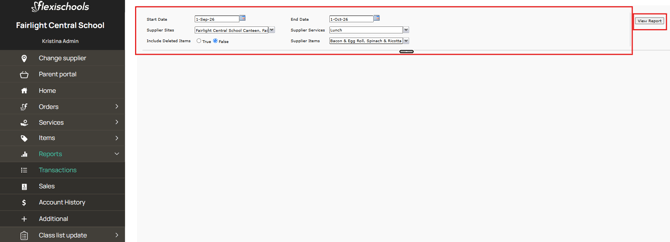
- Go to Reports in the Supplier Portal.
- Select the report you want to run.
- Wait for the report filters to load.
- Select the relevant filters, such as the date range, service or item.
- Select View Report.
- Wait for the report to load.
Exporting Reports to Excel
Many reports display as a preview within the Supplier Portal. For the most complete view of your report, we recommend exporting it to Excel.
To export:
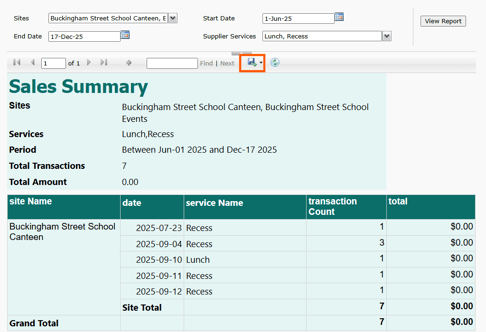
- Run the report using your required filters.
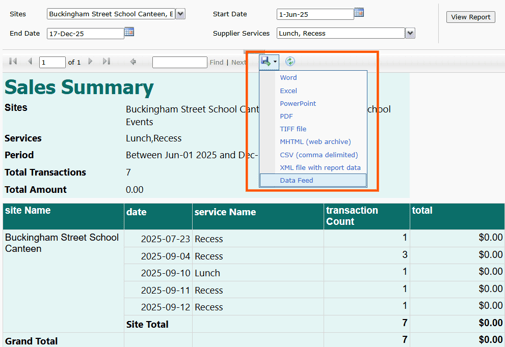
- Select the Export icon (floppy disk with an arrow).
- Select Excel.
- Open the downloaded file from your computer's Downloads folder.
Some reports include multiple tabs in Excel that are not visible in the portal preview. Always export to access the full detail.
For example:
- D02 – Quantity Sell Limits by Item provides additional views for item and option limits.
- S03 – Item Summary provides additional views, including sales grouped by class.
You can also hide or remove columns in Excel if you only need specific information from the report.
Transaction Reports
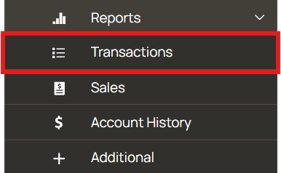
Transaction Reports provide a detailed view of sales activity at the order and item level.
This section allows you to:
- See exactly what was sold
- Understand who purchased items
- Review individual transactions across online and POS
Within the Transaction Section, you have access to the following reports: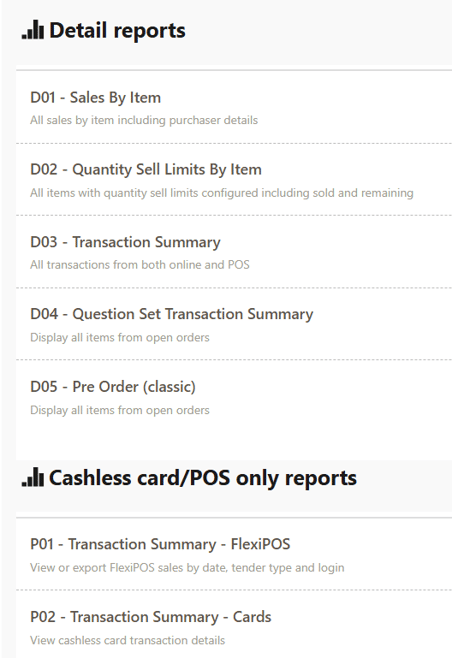
1. D01 - Sales by Item
Best for: Checking how many of a particular item have been sold and reviewing the associated order information.
What it shows
Depending on the item information available, the report can include:
- Item name
- SKU
- Price
- Quantity/total sold
- Associated order information
You can select one or more items when running the report, making it useful when you're looking for sales information about a particular product or all products.
Use this report to:
- Check how many of a specific item were sold
- Review sales for selected items
- Review the order information associated with those sales/items
- Compare item sales across your selected date range
2. D02 - Quantity Sell Limits by Item
Best for: Reviewing quantity limits across your items and options without opening each item individually.
If you're using Quantity Sell Limits, this report gives you an overview of the items and options that have limits applied.
What it shows
-
Items and item options with quantity limits applied
-
The total limit set for each item
-
The quantity sold
-
The remaining quantity available
- Limits per service time and in total (via export tabs)
Key uses
- Monitor items approaching their sell limit
- Check remaining quantities
- Review limited-stock items and options
- Review quantity limits across multiple items in one place
Supplier portal view:
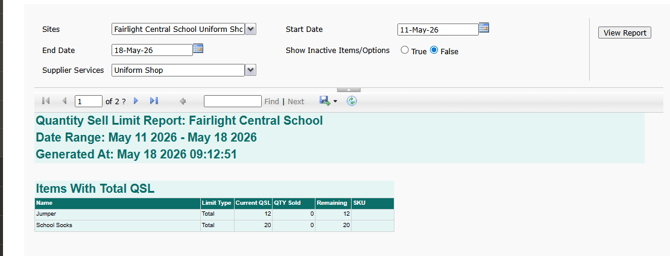
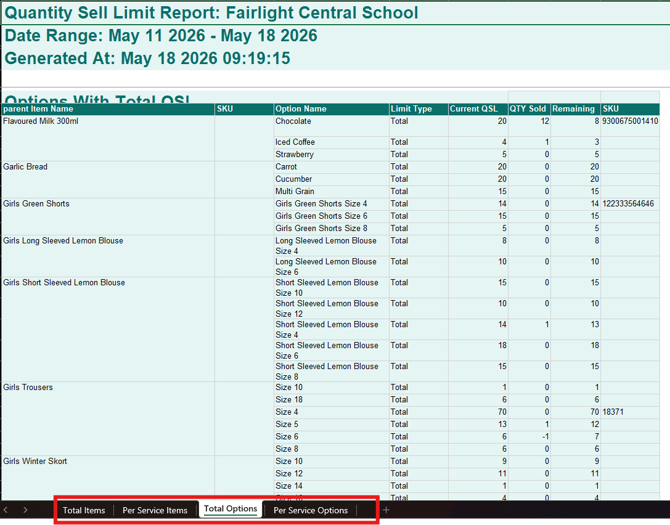
Export required Exporting reveals additional tabs such as:
- Total items
- Per service items
- Total options
- Per service options
Once you open the downloaded file, you will have extra tabs at the bottom, showing you an overview of the QSL on items and options, separated by 'in total' or 'per service time' stock limits.
Excel View:
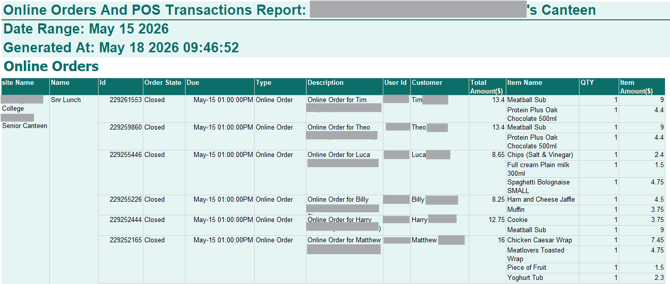
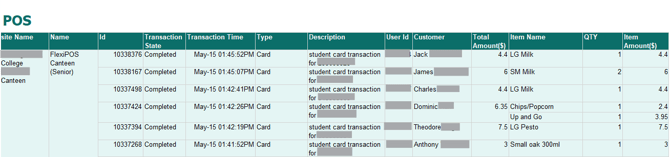
3. D03 - Transaction Summary
What it shows
-
All transactions across:
-
Online orders
-
POS (point-of-sale) where applicable
-
-
Summary including sales, payment method, and item counts
Key uses
- View all transaction activity in a single report
- Review orders within a selected date range
- Compare online vs POS transactions
-
Check:
-
Payment methods used on FlexiPOS
-
Order volumes
- Cross-checking:
- “Did this order go through?”
- “Was this processed online or at POS?”
-
“Are we getting more walk-up (POS) or online orders?”
-
Quick tip:
D01 = item-focused
D03 = broader transaction/service view
4. D04 - Question Set Summary
The Question Set Transaction Summary Report provides transaction information, including item options and question set selections.
Best for: Easily reviewing the options selected on orders, including any additional information collected through question sets.
Question sets can be used in Event and Uniform Modules where customers need to provide additional information when ordering.
Use this report to:
- Review customer selections
- See additional information submitted with orders
- Review product options or customisations
- Assist with order preparation
- Review commonly selected responses
When to use: An item allows customers to select options or free type answers when ordering and you need to review those selections alongside the relevant transactions.
5. D05 - Pre Order (Classic)
Example D05 Report
Best for: Reviewing orders that have been placed in advance for an upcoming service or event.
It is particularly useful for preparing and fulfilling orders before service begins.
Use this report to:
- Review upcoming pre-orders
- See what has been ordered
- Review quantities required
- Assist with preparation, packing and distribution
- Review relevant order information for fulfilment
When would I use it?
Use the Pre-Order Report before an event to review what customers have already ordered and help you plan and prepare.
Tip! Make sure you select the date of the event in the date picker so the report displays the correct orders.
Cashless card/POS only Reports:
P01 - Transaction Summary - FlexiPOS
The report provides detailed information about transactions processed through FlexiPOS for your selected reporting period.
Best for: Reviewing transaction activity processed through FlexiPOS and investigating individual POS transactions.
Use this report to:
- Review POS sales
- Check individual POS transactions
- Reconcile POS activity
- Investigate transaction queries
- Review payment activity for a particular period
When would I use it?
Use the FlexiPOS Transaction Summary when you need to review the individual transactions that make up your POS activity.
Example: Your POS total for the day doesn't match another internal figure, and you need to review the individual transactions to help identify the difference.
P02 - Transaction Summary - Cards
This report provides transaction information relating to student cards used across FlexiPOS services and log ins.
Best for: Reviewing transactions associated specifically with student cards used with FlexiPOS and investigating card-related purchases.
Use this report to:
- Review card-based transactions
- Investigate a transaction made using a card
- Support transaction reconciliation
- Review card activity during a reporting period
- Help investigate customer queries relating to a purchase
When would I use it?
Use the Cards Transaction Summary when you need to review or investigate a transaction associated with a particular student card.
Example: A customer has a question about a purchase made using their card, and you need to review the associated transaction information.
Important: Card identifiers and related user information should be treated as sensitive information and only accessed or shared where appropriate.
Sales Reports
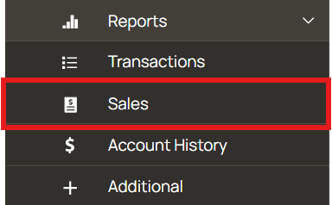
The Sales section provides reports to help you understand sales activity, performance and item trends.
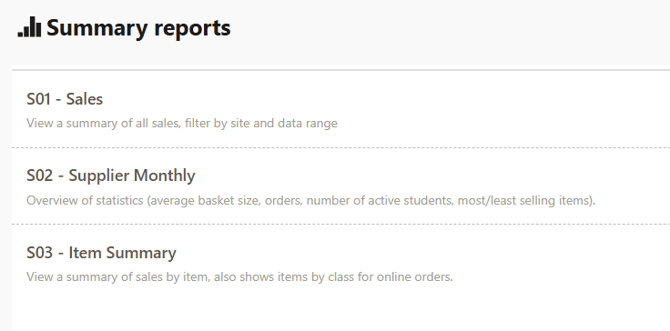
An easy way to remember the three reports is:
S01 – Sales = Overall sales
S02 – Supplier Monthly = Performance insights
S03 – Item Summary = Item and class-level sales
The Sales Reports section provides both high-level summaries and detailed insights into sales performance across a selected date range. These reports help track revenue, order behaviour, and item performance.
1. S01 – Sales
Best for: Quickly reviewing transaction count and sales value over a selected period.
What it shows
The report provides an overall view of sales activity, including:
- Transaction count
- Dollar value
You can adjust the date range depending on the period you want to review, whether it's one day or a weeks worth of sales.
Use this report to:
- Check overall sales for a selected period
- Review transaction volumes
- Compare overall activity across different reporting periods and services
Think of this as your “How much did we make?” report
2. S02 – Supplier Monthly
Best for: Understanding how your service is performing and identifying trends.
The Supplier Monthly report provides an aggregated overview of activity for the selected period.
What it shows
Information includes:
- Registered students
- Active students
- Total sales
- Average transaction value
- Total transactions
- Online ordering activity
- FlexiPOS activity, where applicable
- Top-selling items
- Lower-selling items
Best used for
-
Identifying trends over time
-
Understanding customer behaviour
- Identify popular items
- Identify items with lower demand
-
Evaluating:
-
Menu performance
-
Engagement levels
-
This is your business insights / analytics report
3. S03- Item Summary
What it shows
The Item Summary provides item-level sales information for the selected service.
For additional information, export the report to Excel.
The exported report includes additional worksheets, such as:
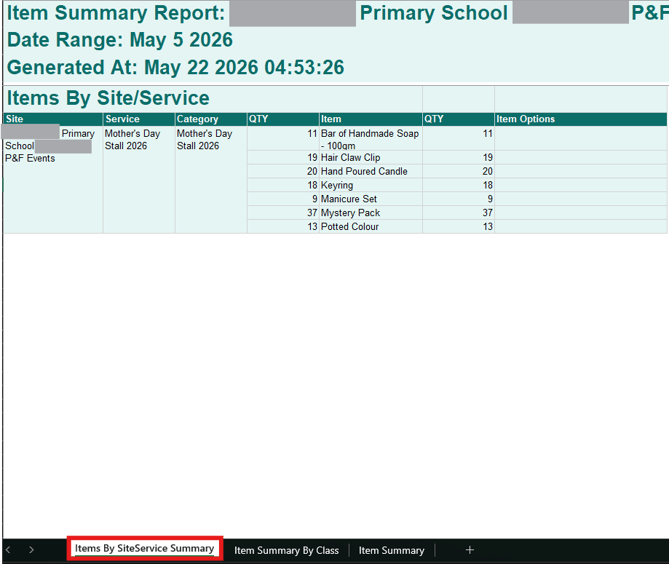
- Items by Site / Service Summary
- Item Summary by Class
- Item Summary
Included Views (via Export)
Items by Site - Service summary
This tab provides a summary of items ordered for each individual service or site included in the report.
It shows:
- The site/service name
- The items ordered through that service
- The quantity ordered for each item
This is particularly useful if you manage multiple services or sites, as it lets you see exactly what has been ordered for each one separately, rather than combining everything into a single total.
Example: If your report includes a Canteen, Uniform Shop and Event service, this tab separates the item quantities for each service, making it easier to see what was ordered through each one.
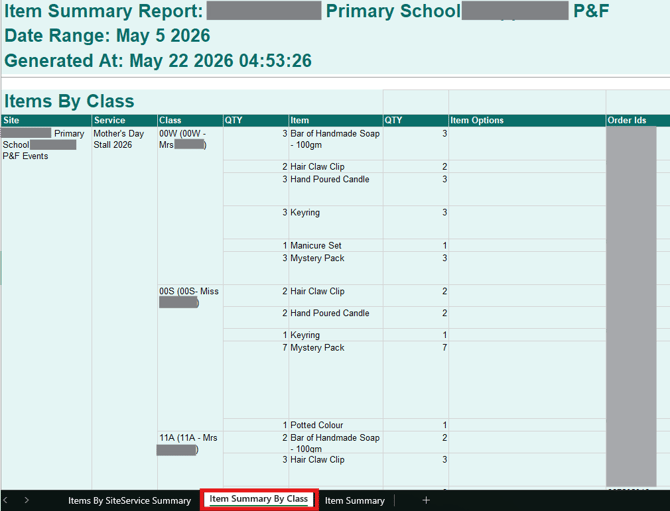
Item Summary by Class Tab
This view groups ordered items by class.
This can be particularly helpful when you're running an Event or other non-food service and need to see which items have been ordered for each class.
For example, if you're running a school event, you can select the event service, run S03 and export it to Excel to access the class-based view.
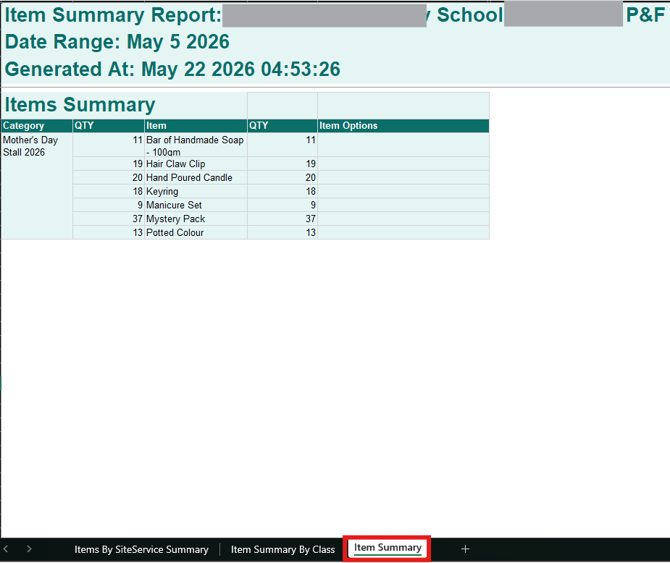
Provides a summary of sales by service, similar to the “Items by Site – Service Summary” view, but without separating results by individual sites. This means all sales are combined into a single overall total, rather than being broken down by shop type (e.g. Events, Canteen, Uniform Shop).
- S01 – Sales = Money
- S02 – Supplier Monthly= Business insights
- S03- Item Summary= Product performance
Account History
The Account History section provides a complete record of all financial activity on your account.
This includes:
- Supplier statements (available to download) and searchable by date
- All transactions in and out of your account
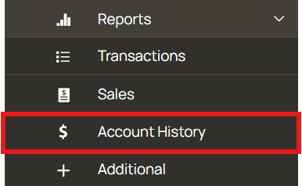
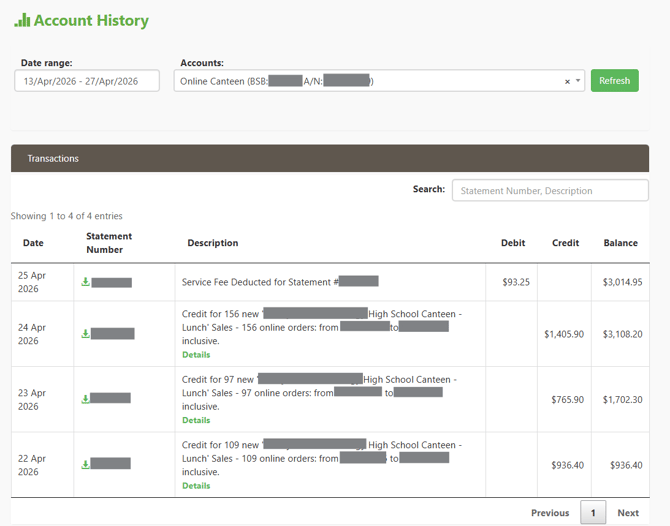
⬇️ How to Download Statements
- Go to Account History
- Locate the transaction you want
- In the Statement Number column, click the download icon (⬇️)
- The statement will download as a file (usually PDF or CSV)
- Open the file to view a detailed breakdown of:
- Orders included
- Sale totals
- Fees applied
What statements include
- Breakdown of sales for a period
- Total revenue collected
- Fees deducted
- Net amount paid to you
Types of transactions you may see
-
✅ Credits – Revenue from orders (e.g. daily or batch sales)
-
✅ Debits – Fees or adjustments (e.g. service fees)
How to Reconcile Using Account History
You can use the Account History report to match your Flexischools transactions against your bank account or internal records.
Step-by-step reconciliation
-
Set your date range
-
Select the period you want to reconcile (e.g. weekly, monthly)
-
-
Review credits (money in)
-
Look for “Credit” entries
-
These usually represent:
-
Sales payouts (e.g. daily or batch sales)
-
-
-
Review debits (money out)
-
Check “Debit” entries for:
-
Service fees
-
Adjustments
-
-
-
Match to your bank deposits
-
Compare the credit amounts in Account History with:
-
Deposits received in your bank account
-
-
Note: Some payouts may be grouped (e.g. multiple days in one deposit)
-
-
Check the running balance
-
The Balance column helps confirm:
-
Nothing is missing
-
Totals are consistent over time
-
-
-
Investigate any differences
-
If something doesn’t match:
-
Open the statement (see below) for more detail
-
Check transaction descriptions (e.g. dates, order counts)
-
-
Remittance
What is this report?
The Remittance Advice provides information about a payment/remittance and the activity that the payment relates to.
It is primarily a payment reconciliation document.
What can I use it for?
- Match a payment received to the corresponding remittance
- Understand what a payment relates to
- Support bank reconciliation
- Confirm payment amounts
- Provide supporting documentation for finance teams
When would I use it?
Example: A payment has appeared in your bank account and your finance team wants to confirm which Flexischools activity the payment relates to.
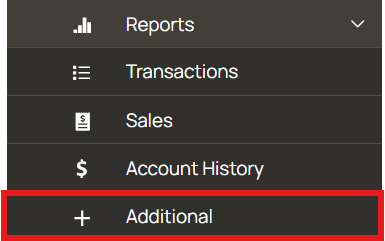
Additional
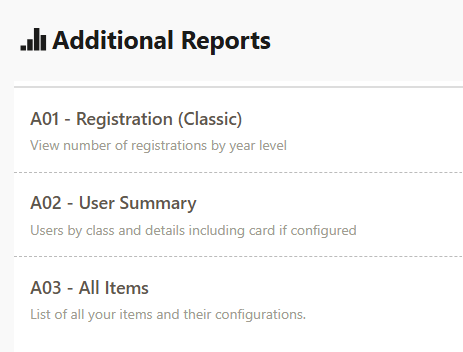
A few extra reports are located here to help you manage users and items
- Registration will show you a user count by year level
- User Summary will show you all your users and any configured student cards
- All items is a list of all your items on Flexischools which you can use for a printable menu or catalog.
A01 - Registration Report Classic
What is this report?
The Registration Report provides details about users and students registered against the school.
What can I use it for?
Use this report when you need to:
- Review students registered with Flexischools
- See the details associated with a student registration
- Check registration information by student or year/group
- Identify which parent/customer account a student is associated with
- Review registration data in bulk rather than looking up individual users
What's included?
Depending on the information available, the report may include:
- Student name
- Student ID or identifying code
- Year or class information
- Parent/customer details
- Registration information
When would I use it?
Example: You want to review your registered student list or check whether a particular student has been registered correctly.
A02 - User Summary
What is this report?
The User Summary Report provides a detailed export of users associated with the school.
What can I use it for?
This is useful when you need to:
- Review users associated with your school
- Look up customer or student details
- Check account and registration information
- Review user information in bulk
- Investigate discrepancies relating to a particular user or student
What's included?
The report can contain information such as:
- User details
- Student details
- Contact information
- Account identifiers
- School-related registration information
Important
This report may contain personal information and should be handled securely and only shared with authorised people.
A03 - All Items
What is this report?
The All Items Report provides a list of items configured for a supplier or service.
What can I use it for?
Use it to:
- Review your current item catalogue
- Check item names and pricing
- Review which items are available
- Audit your menu or product setup
- Compare configured items with your internal product list
What's included?
Information can include:
- Item name
- Item description
- Price
- Category
- Item availability or configuration information
When would I use it?
Example: Before updating a canteen menu, you could export the report to review the items currently configured in Flexischools.