
The Flexischools Supplier Portal is where you can manage services, items, orders, reports, communications, and more. Follow the steps below to access the portal and understand each menu option.
📽️ How to Access and Navigate the Supplier portal — Video Guide
Watch this short video to learn how to log into the Supplier Portal and navigate the different sections.
1. How to Access the Supplier Portal
Step 1: Go to the Supplier Portal
Open your web browser and type supplier.flexischools.com.au into the search bar.
Alternatively, you can go to the Flexischools website and log in via the orange 'Sign in" button.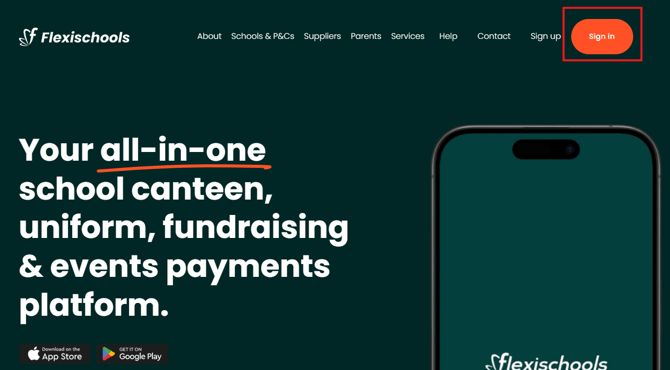
Step 2: Log In
Select Log in and enter your Flexischools admin credentials.
Step 3: Choose the Supplier Portal
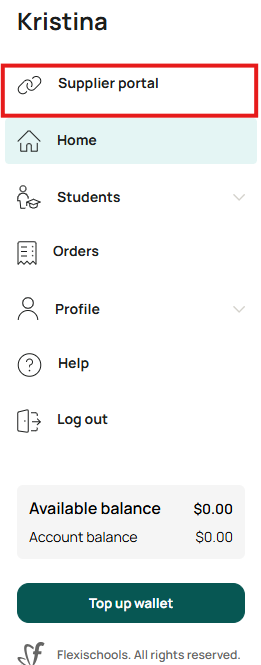
Click Supplier Portal to continue.
You will now be taken into the Supplier Portal dashboard, where all your supplier tools are displayed in the left‑hand menu.
If you log in via supplier.flexischools.com.au, you will be taken directly to the Supplier Portal.
2. Navigating the Supplier Portal
Your menu will look similar to the screenshot, featuring all available supplier tools. Below is a breakdown of each section and what it is used for.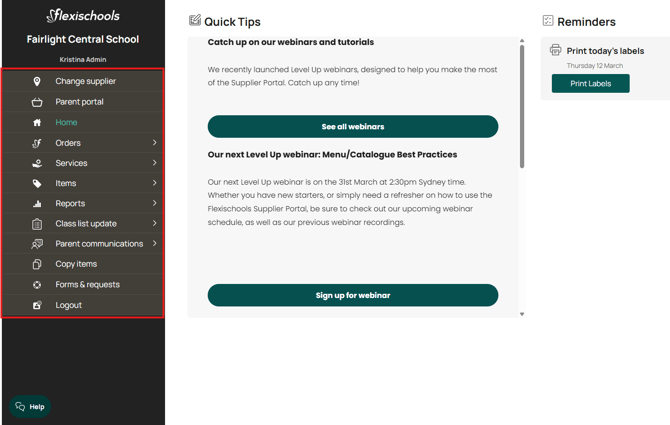
Change Supplier
Switch between multiple supplier accounts (only visible if you manage more than one).
Parent Portal
Quick access back to the Parent Portal view (helpful for when you want to review your services from a parent’s perspective).
Home
Your main landing page, containing:
- Quick links and helpful articles
- Reminders, such as printing labels
- Important notices and Flexischools updates
Orders
View and manage all incoming orders, including:
- Daily orders and order history
- Order details and fulfilment info
- Label printing
- Items, order and class reports
This is where you’ll spend time preparing items for collection or delivery.
For more information pertaining to order management and label printing please click here.
Services
Manage the services you offer through Flexischools, such as:
- Canteen services
- Event service
- Uniform shop services
- Payment services
You can create, deactivate, reactive and or edit each service’s settings.
Click here for more information around creating a new or special service.
Items
Manage all items available for purchase under your services. Here you can:
- Add new items
- Edit item descriptions and pricing
- Manage stock availability
- Add options (sizes, variations, donation amounts, etc.)
You can find more information about item creation here.
Reports
The Reports section provides a range of reporting tools. These reports help you analyse sales activity, review transactions, download financial statements, and obtain operational insights for planning and reconciliation.
Within the Reports menu, you’ll find four main report categories:
- Transactions
- Sales
- Account History
- Additional Reports
Class List Update
Parent Communications
Send notifications or updates directly to parents using Flexischools communication tools.
Ideal for:
- Menu specials and order deadline reminders
- Closure notices
- Special event announcements
Further instructions on how to create and send parent notifications can be found here.
Copy Items
Forms & Requests
- Update contact details or add a new user
- Change your bank details
- order labels
-
Submit a support ticket directly to the Flexischools team
-
Create a new service
-
Add a new service category
- Set up an additional site for an existing supplier
Logout
Ends your session securely.